Trainer setup — once, before day 1
Run by the manager/admin who owns onboarding. A workspace is a separate tenant — nothing here touches the live one.
0 Create the training workspace Public signup page — no in-app "create workspace" exists
Trainer
Open the app's /signup page signed out (no invite token= in the link — that version accepts invitations). Fill workspace name, name, email, password — an address not already an Odly account (e.g. a training@ alias).
You are now its org_admin . The workspace starts on the Free plan's 14-day trial : all features + managed AI, ~10 seats, 25 channels, ~1,000 messages. Run the cohort inside the trial — after it, Free caps bite: 2 seats (over-limit members get paused, not deleted — an admin chooses who stays), 1 channel (extras paused), 500 msgs/mo, no managed AI (BYO key), plan features (lead qualification, Jira sync, audit logs, SSO) off — and only 1 active department, so routing drills die too. A permanent training workspace needs a paid plan or a platform-team arrangement.
Alternative: the platform team (global admin) can create one via the platform API — there's no console button for it.
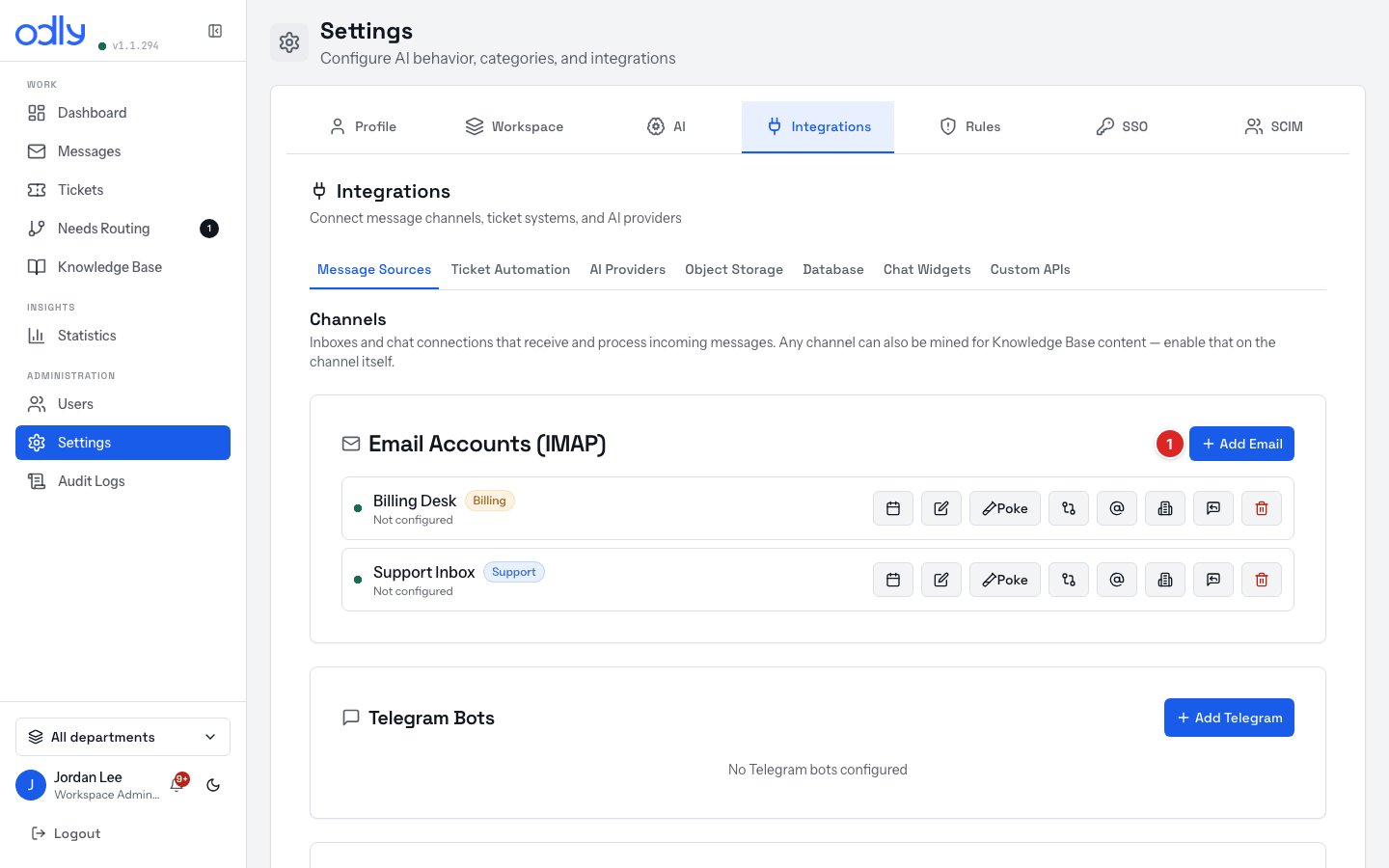
Connect a test mailbox: Settings → Integrations → Message Sources . Signup seeded all six departments but only Info starts active (the default/fallback) on a Free-plan signup — activate Support/Billing/etc. during the trial via the console or API, then link the source to the ones drills route between (Assign departments ).
Add one approved KB entry on your drill topic (feeds A1's suggestion).
Run the before-day-1 checklists (see the docs repo) — trainee, trainer and admin — so nothing blocks day one.
Invite the trainee: Users → Invite User → role Support - Manage tickets and messages → pick their departments → Send Invitation .
Trainee accepts the email link — an existing Odly account works : same email → the invite adds a second membership (no duplicate account; refused only if no seat is free). With two memberships, the workspace switcher appears at the bottom of the sidebar — selection is per browser tab , and a banner names the workspace on Settings/admin screens.
⚠ What a trainer cannot force: AI classifications (KB suggestions, the Spam — to confirm pile, needs-routing marks, lead detection). Manual levers that always work: Mark as suspicious , Mark as lead , Resolve as spam , Not customer work , replies, merges, On-hold, short SLA thresholds. Each drill says which it needs and gives a fallback.
Reset between cohorts: there's no self-serve wipe (Settings → System cleanup is platform-admin only). Resolve/delete leftovers, reuse the workspace, or spin up a fresh one per cohort — each gets a fresh trial.
Week 1 — agent track
W The five-day plan Manager and admin tracks run 2–3 days on their own drills
Plan
Day 1 — quick start + cheat sheet + shadowing; drills A1–A3 (reply, note, resolve).Day 2 — A4–A9 (reopen, Not customer work, spam piles, suspicious, routing, Needs Routing).Day 3 — A10–A16 (tickets, merge, On-hold, SLA, leads, WhatsApp, handover).Day 4 — live inbox supervised. No pre-send approval exists : trainee drafts as an Internal note for review, or the trainer reviews sent replies on the thread.Day 5 — quiz (≥16/20) + sign-off checklist.Manager track — agent Day 1–2 material + M1–M5. Admin track — AD1–AD6 inside the training workspace.
Agent drills · role: support
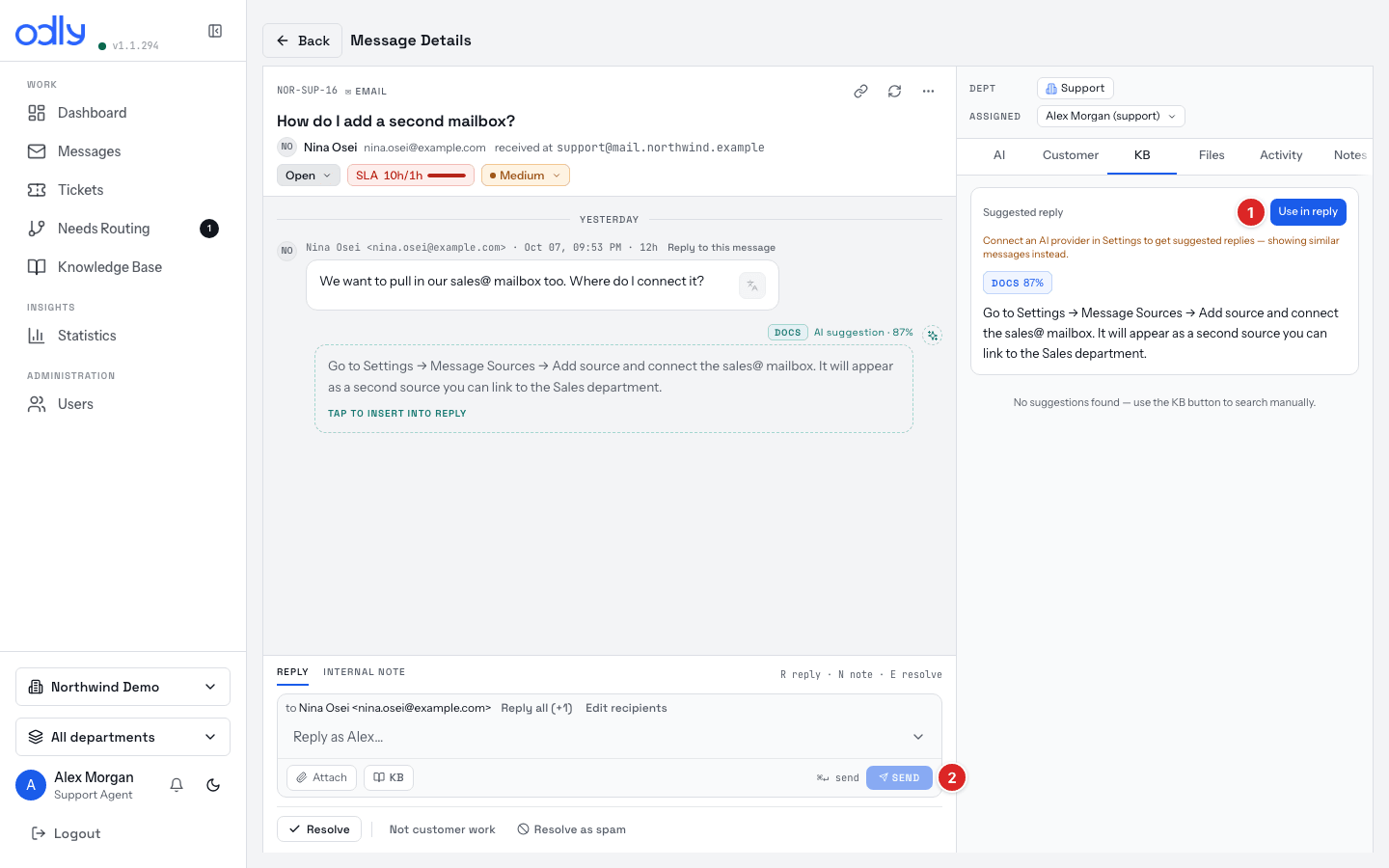
A1 Answer with a KB suggestion Seed: approved KB entry on the topic + an outside mail asking it — suggestion likely, never guaranteed
Claim the conversation; open the KB tab → Use in reply .Composer on Reply → SEND (⌘↵).
① Use in reply on the KB tab (step 1) · ② SEND (step 2)Done right: reply in thread, status Pending . Mistakes: posting as a note; expecting a suggestion without AI configured.
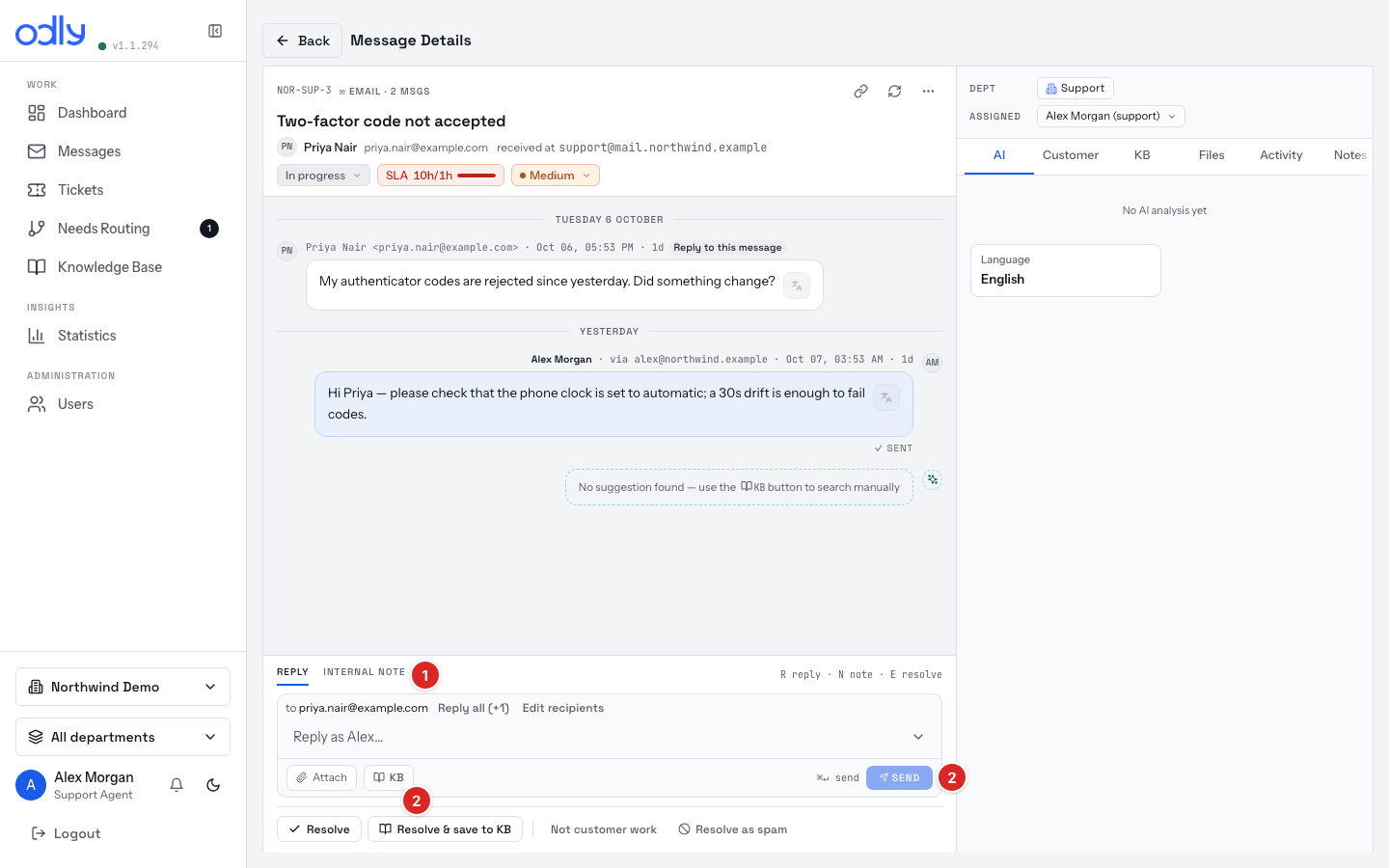
A2 No suggestion → answer, ask, save Seed: any mail on a topic with no KB entry — reliable
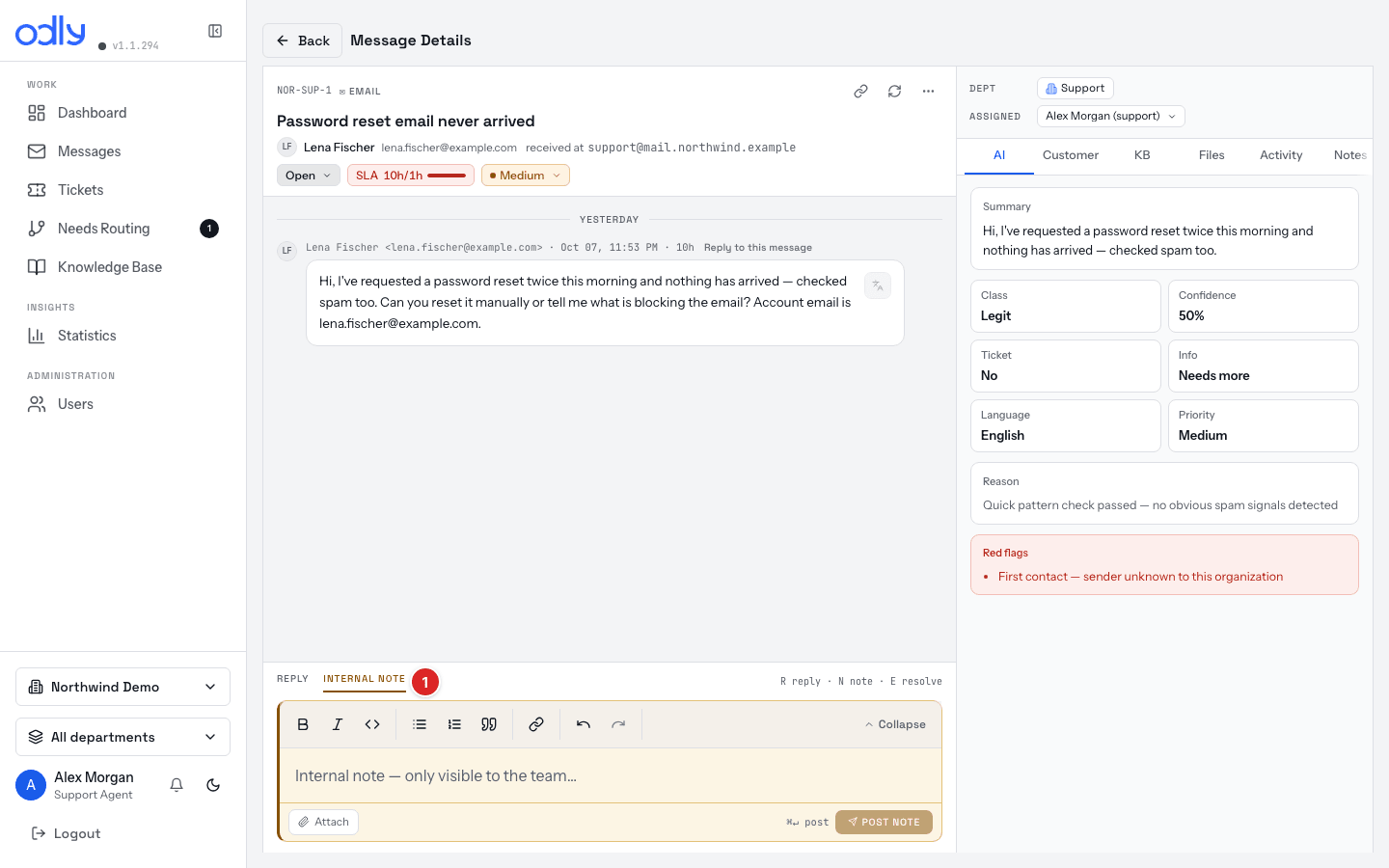
Internal note → ask a colleague → POST NOTE .Reply → write the answer → SEND → Resolve & save to KB (only on an active thread — never on one the customer hasn't written in; then just Resolve ).
① INTERNAL NOTE → POST NOTE (step 1) · ② SEND then Resolve & save to KB (step 2)Done right: note in Notes tab, status Resolved , a pending KB entry for review (some auto-approve).
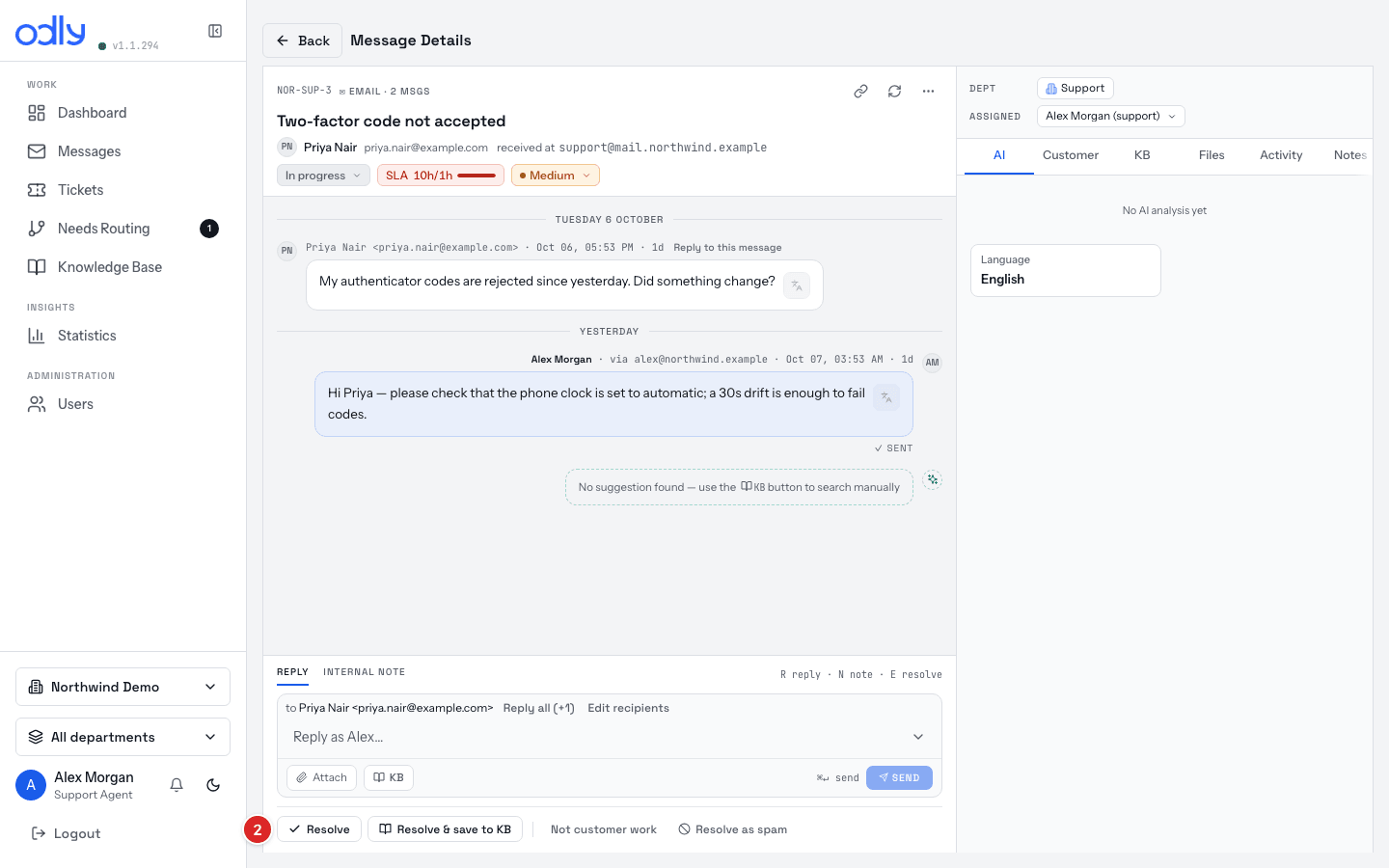
A3 Customer replies → then Resolve Seed: trainer replies again from outside — reliable
Watch Pending → In Progress (dark spine = customer replied).
Answer → SEND → back to Pending → Resolve when done.
② Resolve when it’s done (step 2) — the row’s other exits are for different endingsDone right: card in Resolved ; trainee explains Pending ≠ parked.
A4 Customer writes back after Resolved Seed: one more outside reply on the resolved thread — reliable
Thread reopens to Open on its own — resolution cleared, first-response SLA restarts.
Answer and resolve again.
Done right: trainee knows only confirmed spam never resurfaces.
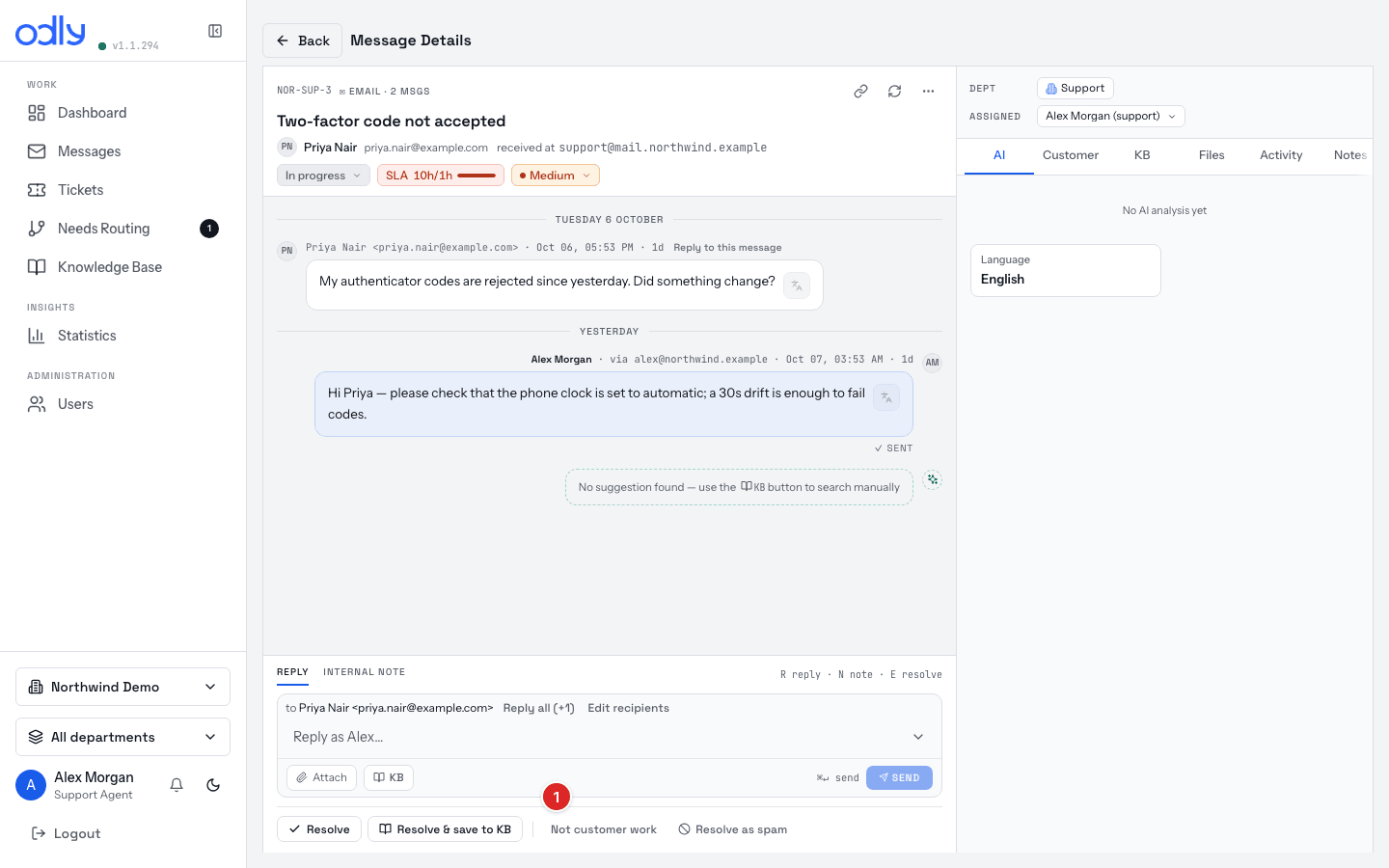
A5 Newsletter → Not customer work Seed: any newsletter/auto-mail — reliable
Open it → Not customer work (quiet exit beside Resolve).
① Not customer work — the quiet exit beside ResolveDone right: in the Resolved column under a muted Closed chip; counts as closed , not resolved; no SLA clock.
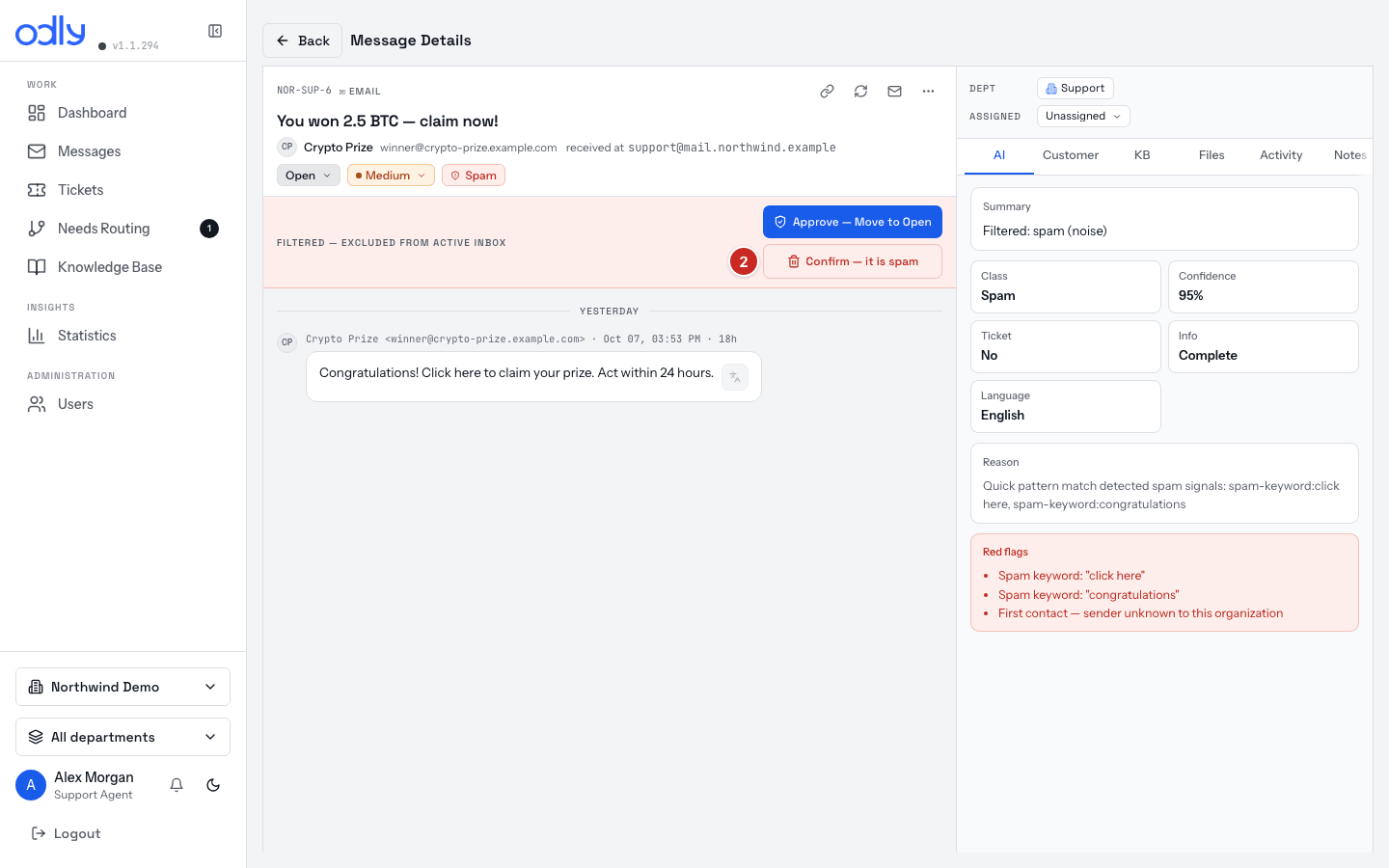
A6 Spam: Resolve as spam + the confirm pile Seed: junk mail for resolve-as-spam (reliable); "to confirm" needs AI-flagged items — use existing or demo only
Junk thread → Resolve as spam → Spam (confirmed), never Resolved.
List view → Queue → Spam — to confirm → Confirm — it is spam or Approve — Move to Open .
② Confirm — it is spam — Approve — Move to Open beside it rescues a false positive (step 2)Done right: trainee names both halves and that confirmed spam never resurfaces.
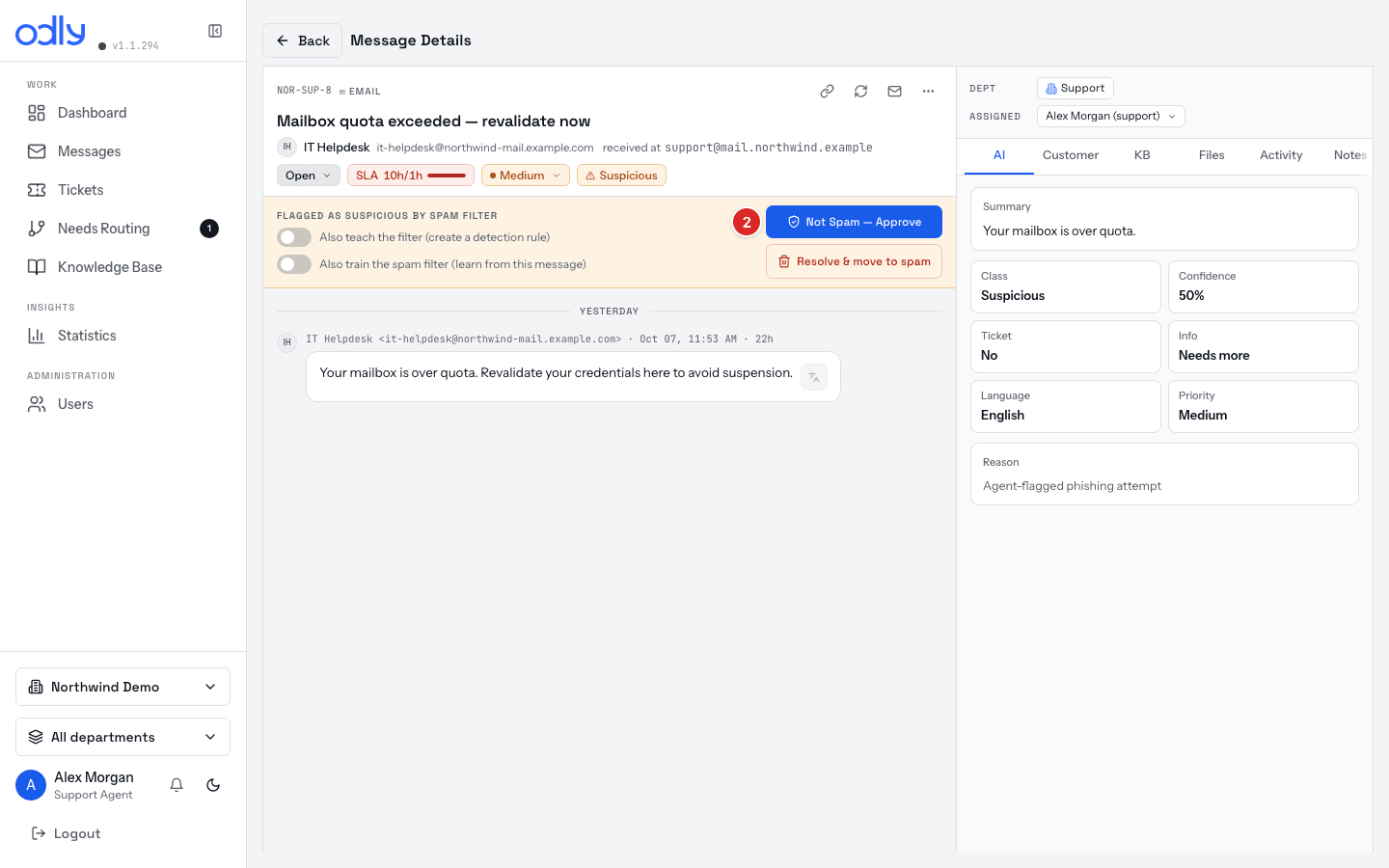
A7 Suspicious mark — review, don't click Seed: trainer marks a thread ⋯ → Mark as suspicious — reliable
Reach it via the bell's Suspicious row or Queue → Suspicious .
Read without clicking links → Not Spam — Approve (phishing/scam flags relabel it Not a Threat — Approve ) or escalate / Resolve as spam.
② Not Spam — Approve for a safe thread — phishing/scam flags label it Not a Threat — Approve ; Resolve & move to spam handles junk (step 2)Done right: trainee knows suspicious is a mark on a thread, not a separate inbox.
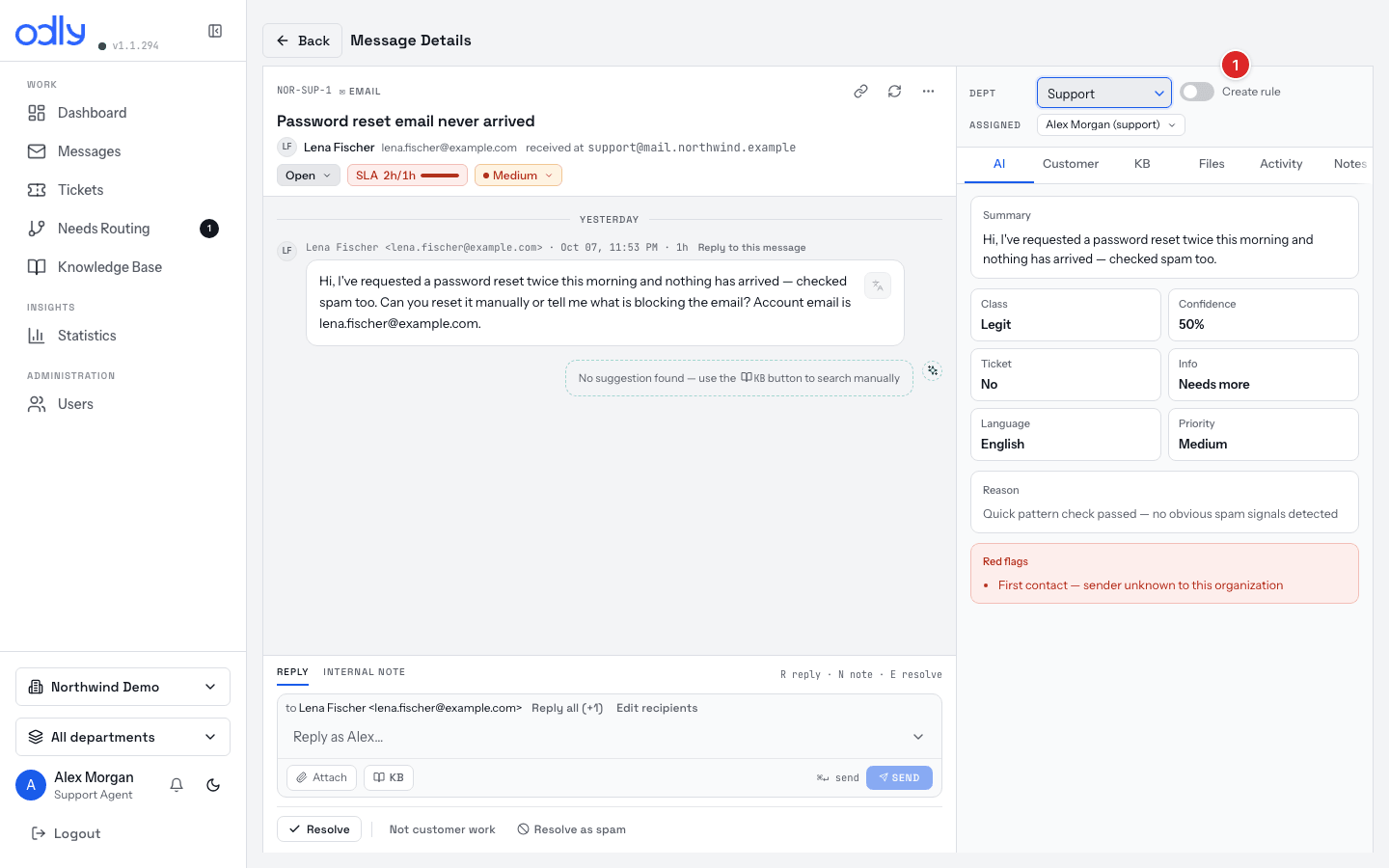
A8 Wrong department → Dept + Create rule Seed: mail meant for another dept; trainee must be a member of the target dept
Click the Dept value in the header strip → pick the right department → optional Create rule toggle.
① Create rule — the toggle teaches the engine the correctionDone right: thread moves; trainee knows Create rule mints a learned rule, and routing is limited to their own departments.
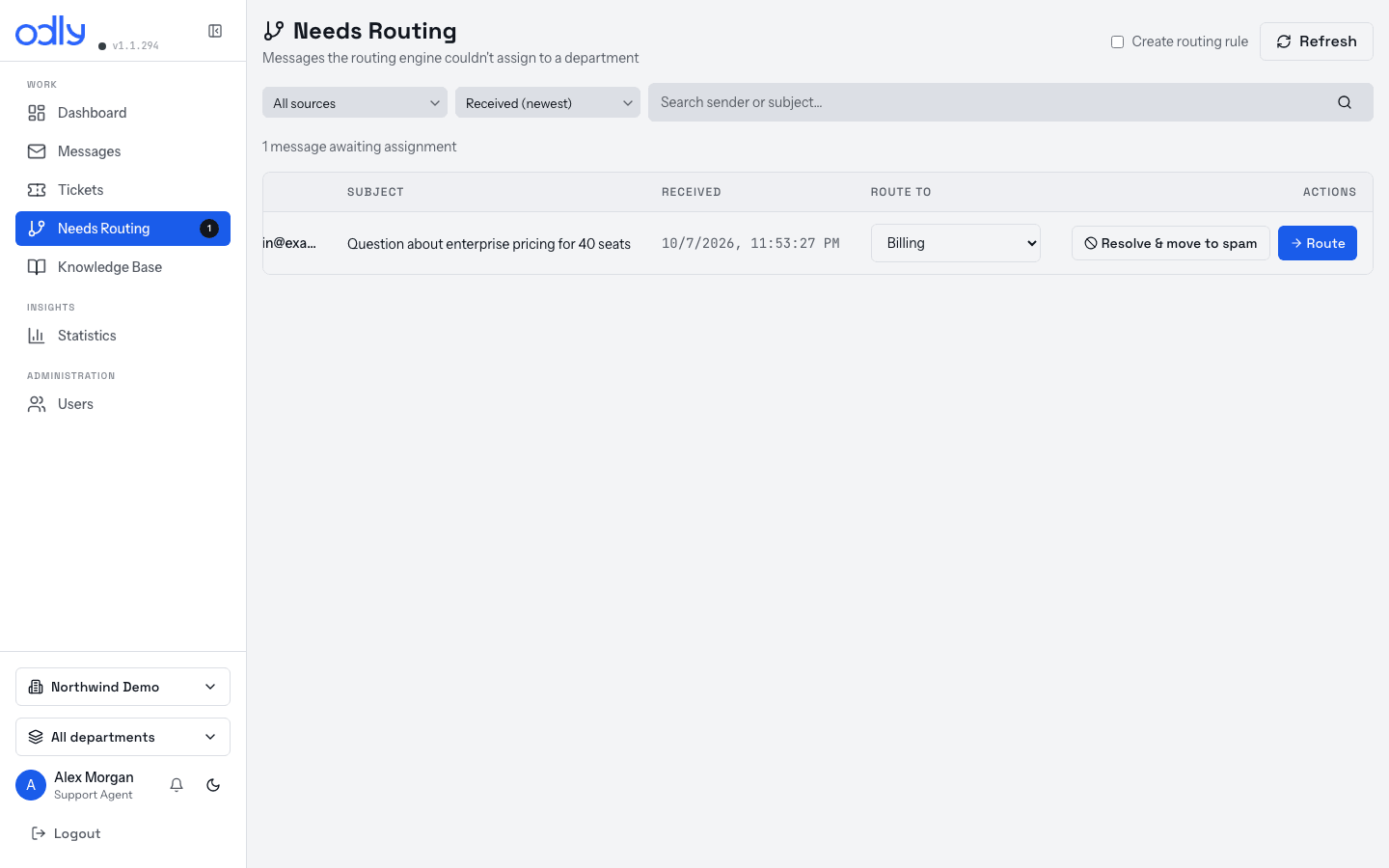
A9 Route from Needs Routing Seed: can't be forced — use a marked thread if the queue is non-empty, else demo via the Dept select
Open Needs Routing (Work nav — shown only when non-empty).
Select department… → route it.
the Needs Routing queue — pick a department per row, then Route Done right: thread leaves the queue into Open; trainee knows needs-routing threads are ordinary work with a mark.
A10 Needs engineering → Create ticket Seed: a bug-report mail; Push to Jira only if Jira connected (plan feature)
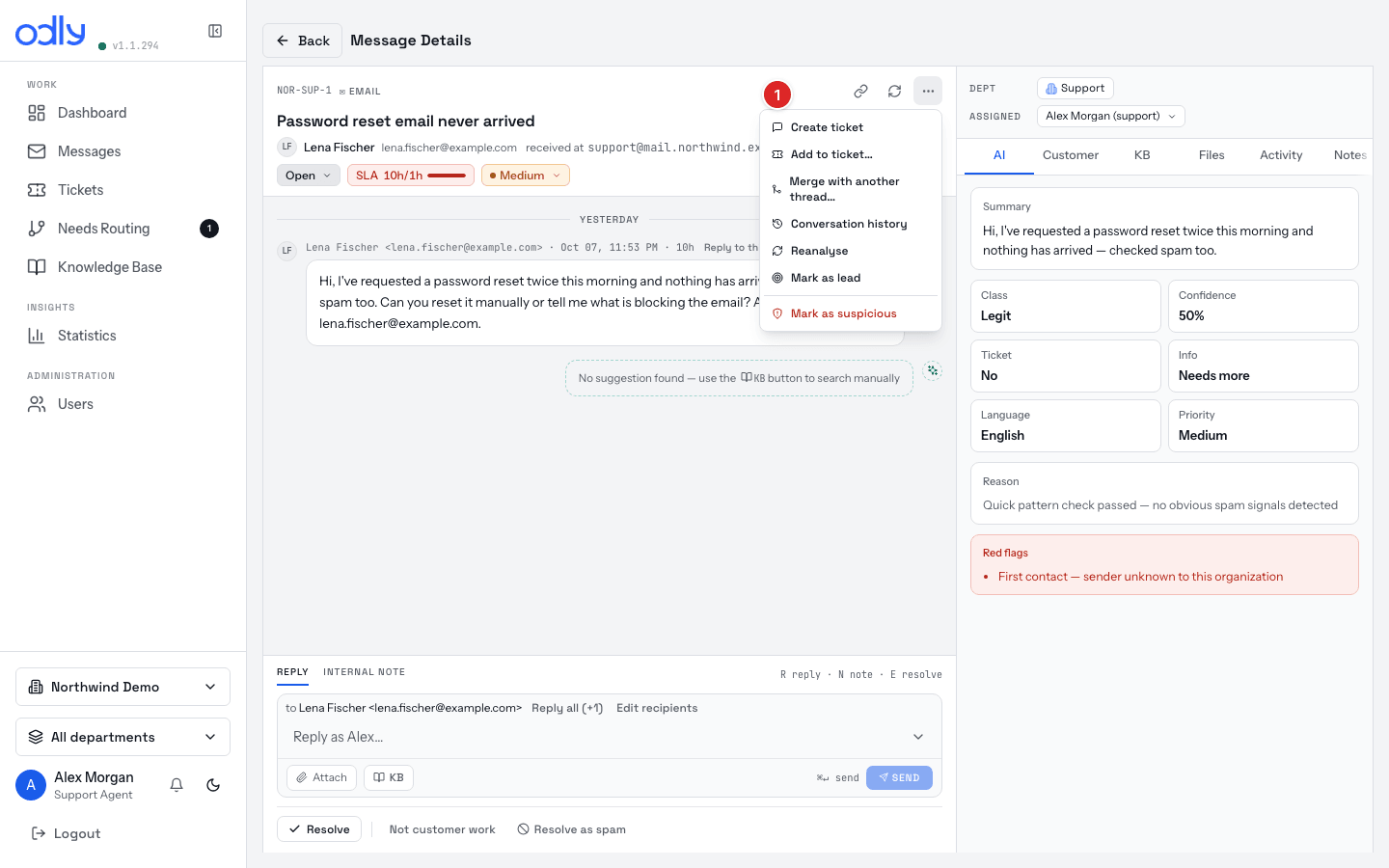
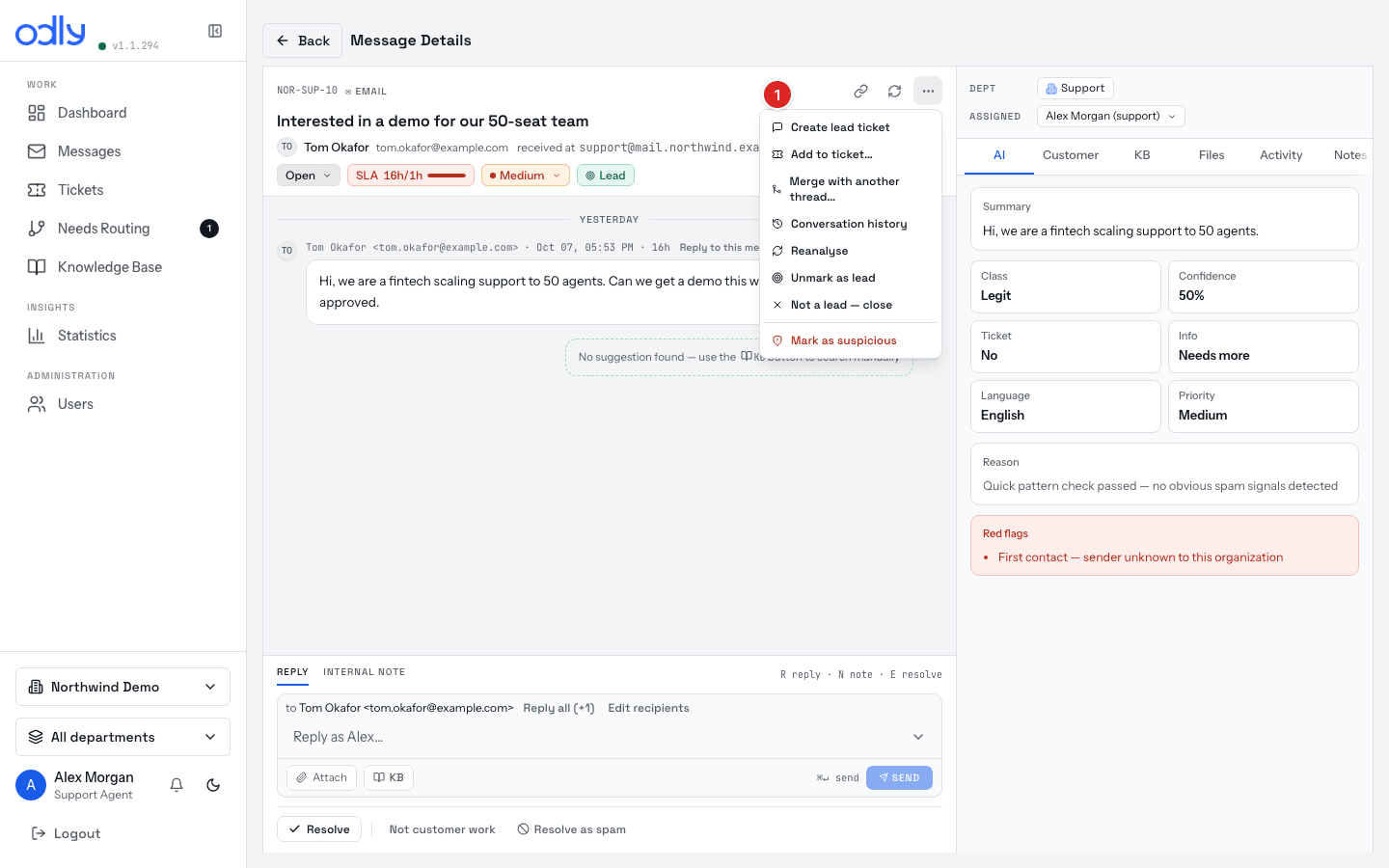
⋯ More actions → Create ticket (on a lead: Create lead ticket ).
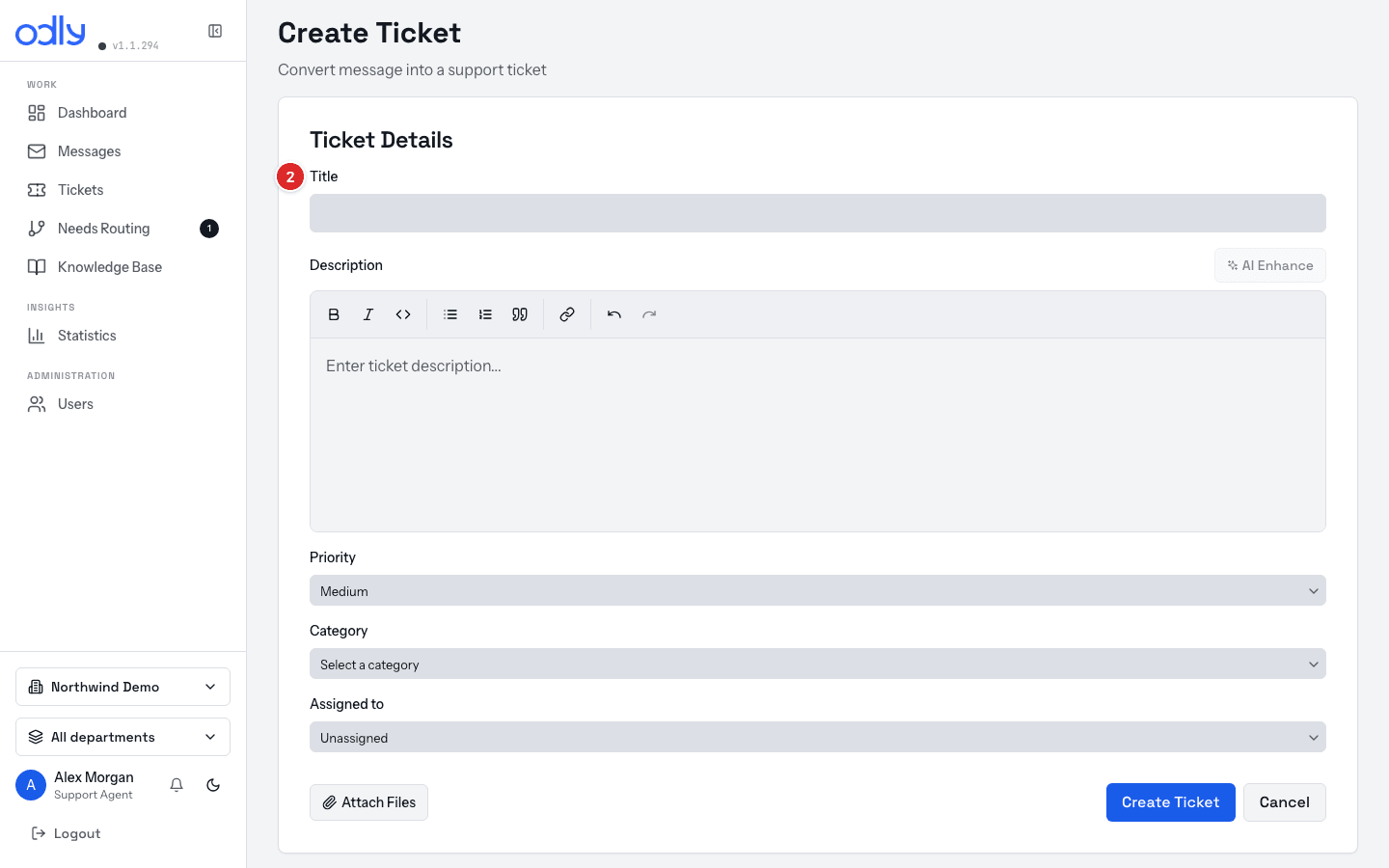
Fill the form; tick Sync to Jira if connected → save.
① Create ticket in the ⋯ menu (step 1)② the form — Title, Description, Priority… Create ticket saves it (step 2)Done right: linked ticket on the thread (filter Linked → Has Ticket ); trainee knows the Tickets page's bulk Sync to Jira is admin-only.
A11 Duplicate threads → merge Seed: two mails from the same outside address — reliable (same channel, ≤20)
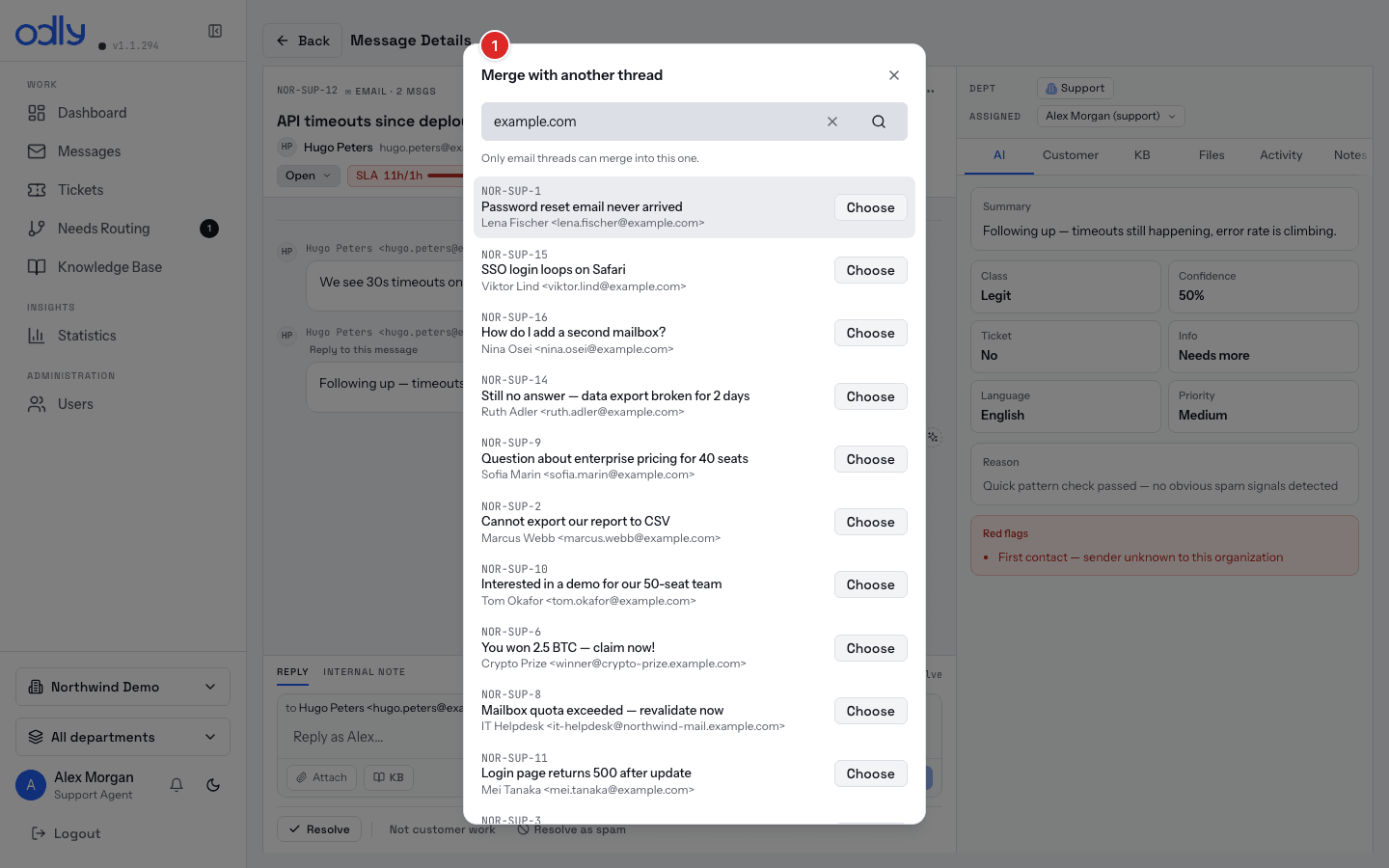
Open the keeper → ⋯ More actions → Merge with another thread… → search "Thread number, address or subject" → confirm.
① the merge dialog — search the thread to fold in, then confirmDone right: one thread, both histories; "Same conversation" section offers Unmerge.
A12 On-hold and back Seed: any open thread + a later customer reply — reliable
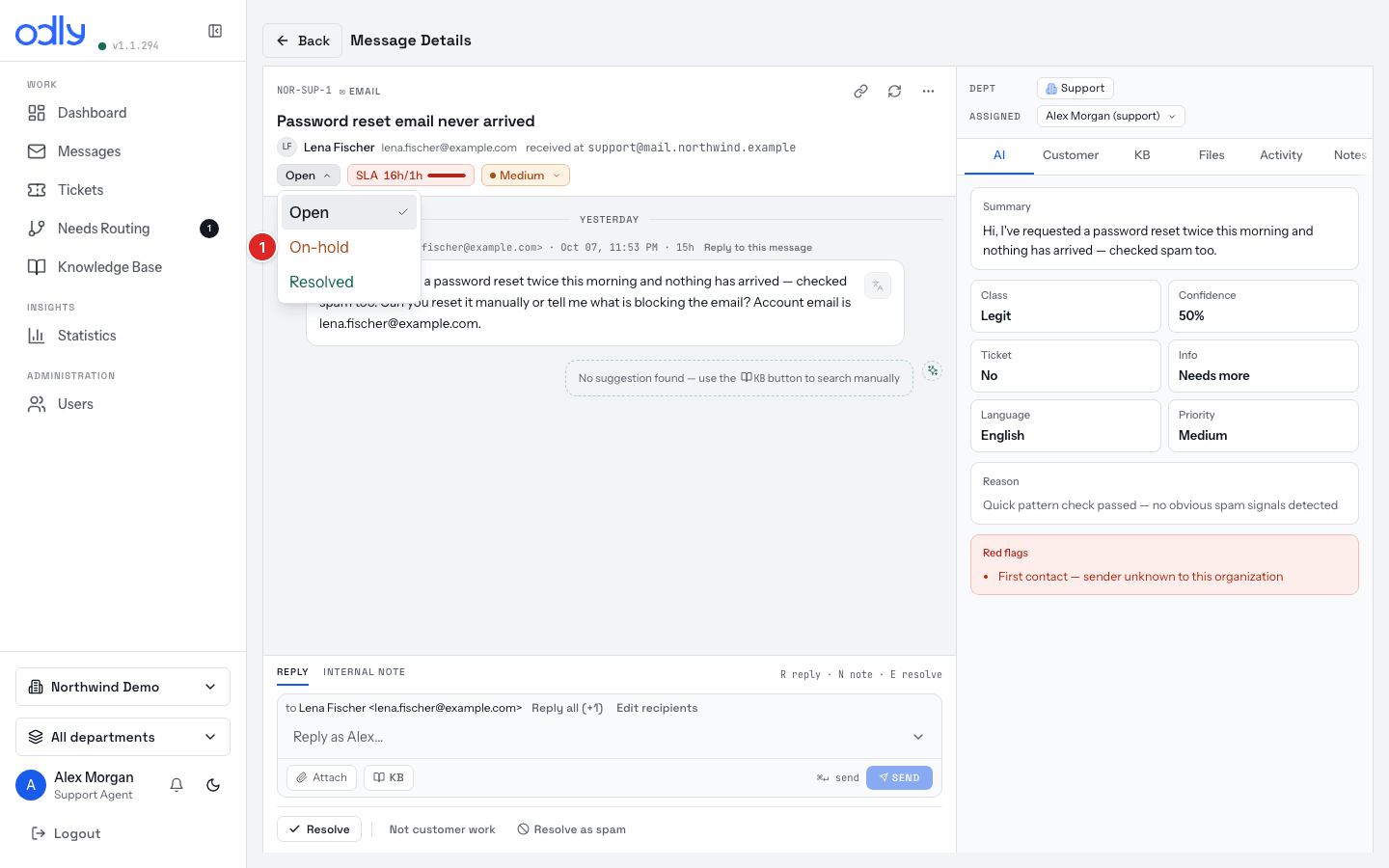
Header status → On-hold (amber badge = parked). Customer reply releases it → In Progress.
Or set it back to Open manually.
① On-hold — set it back to Open to release the thread manually (step 2)Done right: trainee knows the status control offers only On-hold/Resolved on active work (Open = unpark).
A13 SLA at risk / breached Seed: admin sets a 5-min first-response target (Settings → Workspace → SLA Thresholds), send a mail, wait; restore after
Read the card badge: amber At risk (>80% of target) → red Breached (>100%).
Answer those first — they outrank older but safe threads.
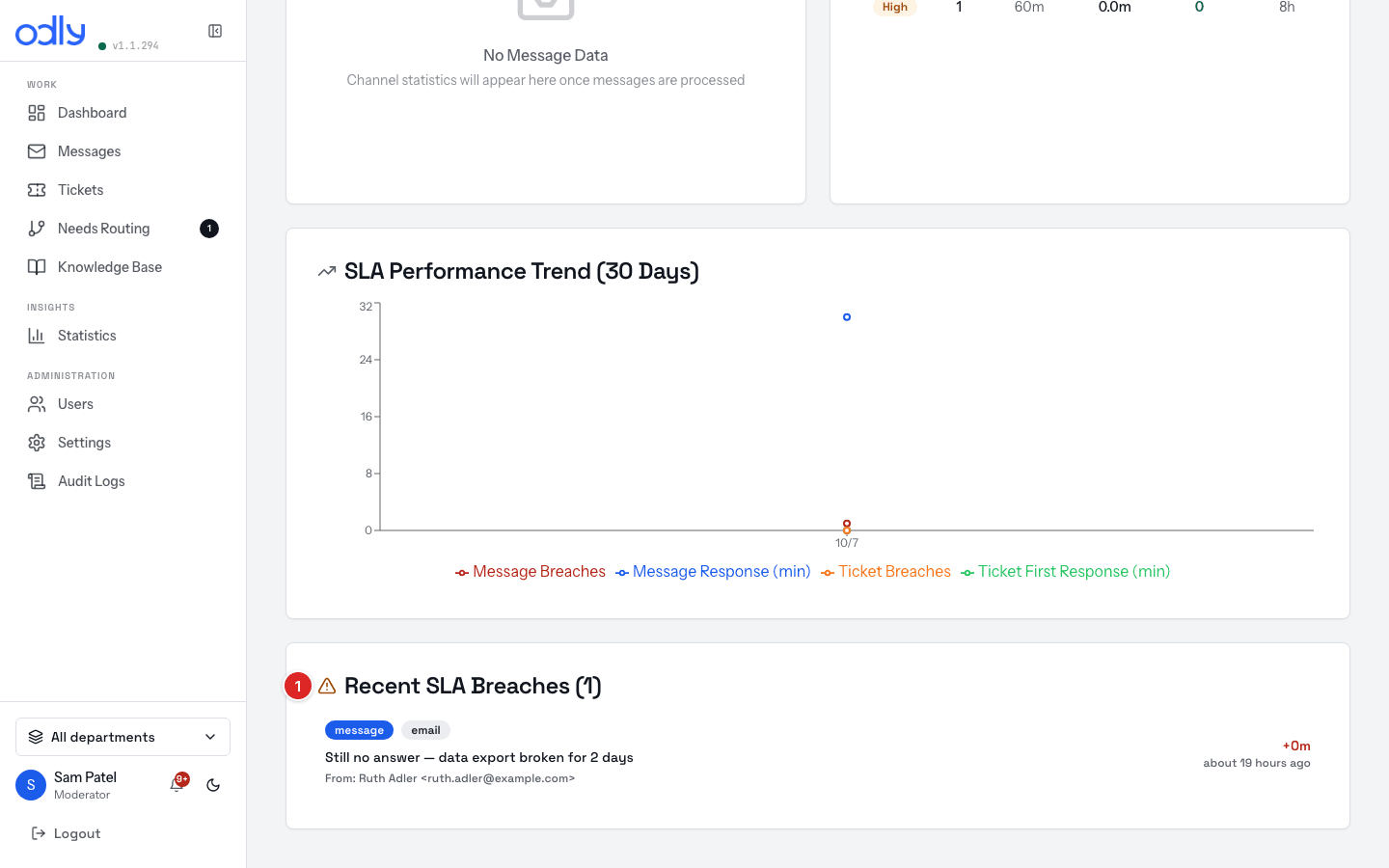
① the Recent SLA Breaches list — each row's red +Nm is the overrun; the same threads carry amber At risk / red Breached badges in the inboxDone right: trainee knows resolved/closed keep a recorded result (no live clock) and spam has none.
A14 Hot lead Seed: buying-intent mail + trainer ⋯ → Mark as lead (detection itself is AI + a plan feature)
Review the conditional Lead tab → ⋯ → Create lead ticket .
Reply fast; reassign via Assigned if sales should own it.
① Create lead ticket — ⋯ also offers Unmark as lead / Not a lead — close Done right: lead ticket tracks it (filter AI State → Lead ); ⋯ menu offers Unmark as lead / Not a lead — close .
A15 WhatsApp outside 24h Only if WhatsApp is connected: a thread quiet >24h
Start a reply → the app offers Continue with an approved template .
Pick a template, fill parameters, send — free-form is impossible outside the window.
Done right: trainee knows the 24-hour rule before promising a reply.
A16 End-of-shift handover Seed: any active thread + a colleague to take it — reliable
Internal note summarizing state → POST NOTE .Set Assigned to the colleague — customer sees nothing.
① INTERNAL NOTE — POST NOTE is team-only (step 1); step 2’s Assigned sits in the headerDone right: context travels with the note, ownership with the assignee.
Manager drills · role: moderator
M1 Rebalance workload Seed: assign several threads to one member
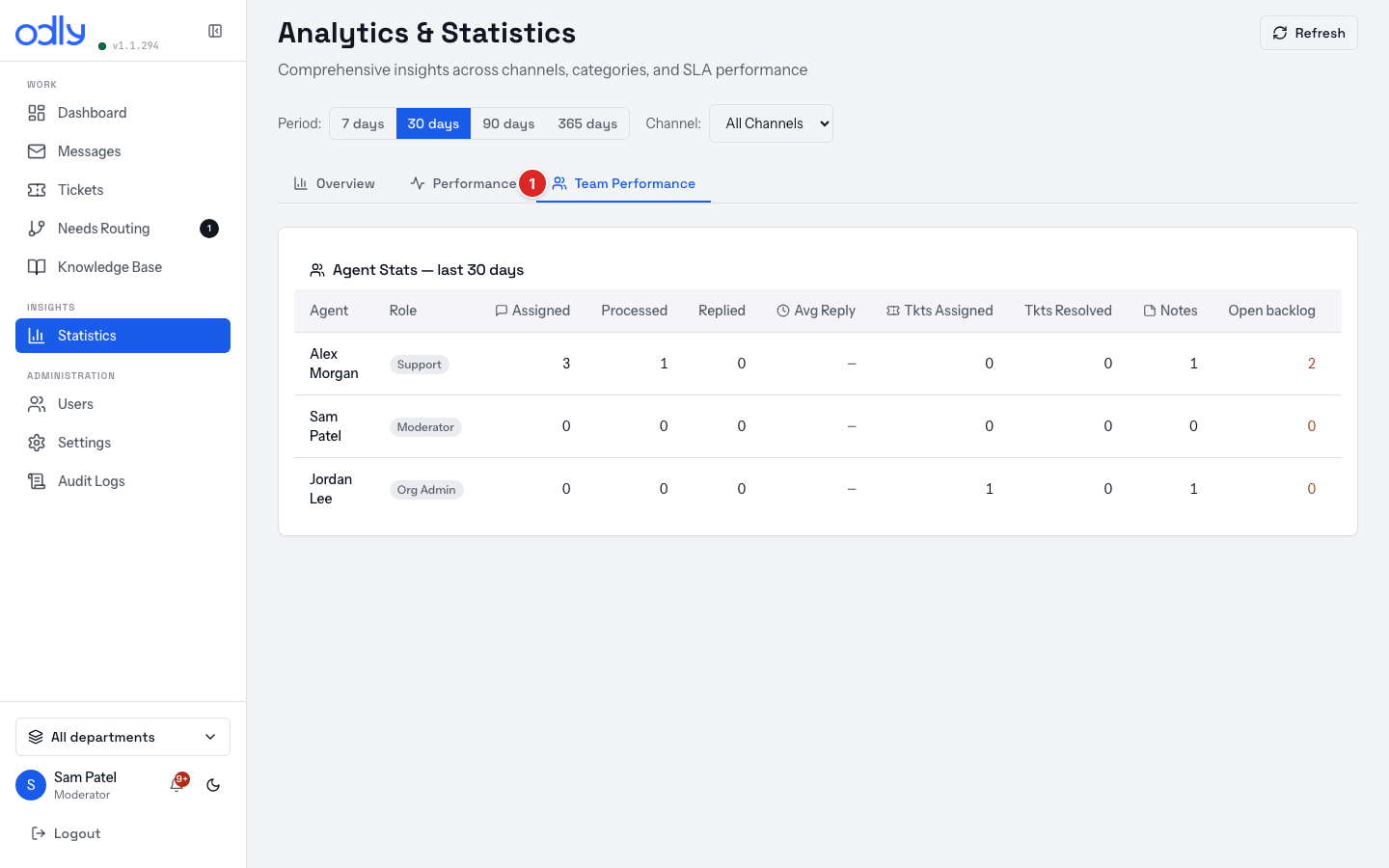
Statistics → Team Performance → Open backlog column.Reassign a thread via Assigned + an internal note. ① Team Performance → the Open backlog column (step 1)Done right: backlog reflects the move; trainee knows auto-assignment rules are admin config.
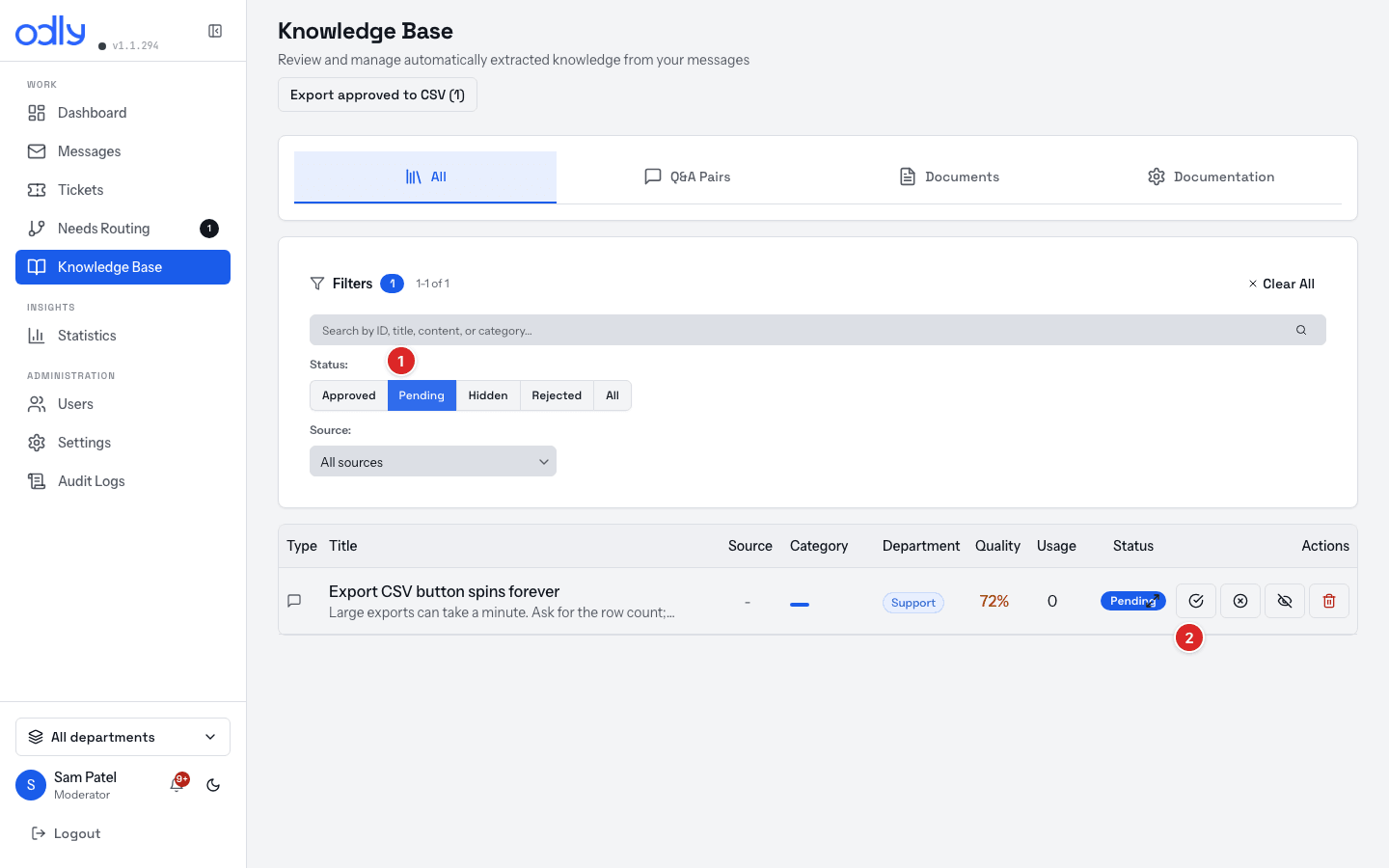
M2 Approve / reject KB entries Seed: agent runs A2 once or twice → pending entries
Knowledge Base → Pending .Approve or Reject (rejected deletes after 90 days).① the Pending filter (step 1) · ② Approve on an entry (step 2)Done right: trainee knows approve/reject needs moderator+.
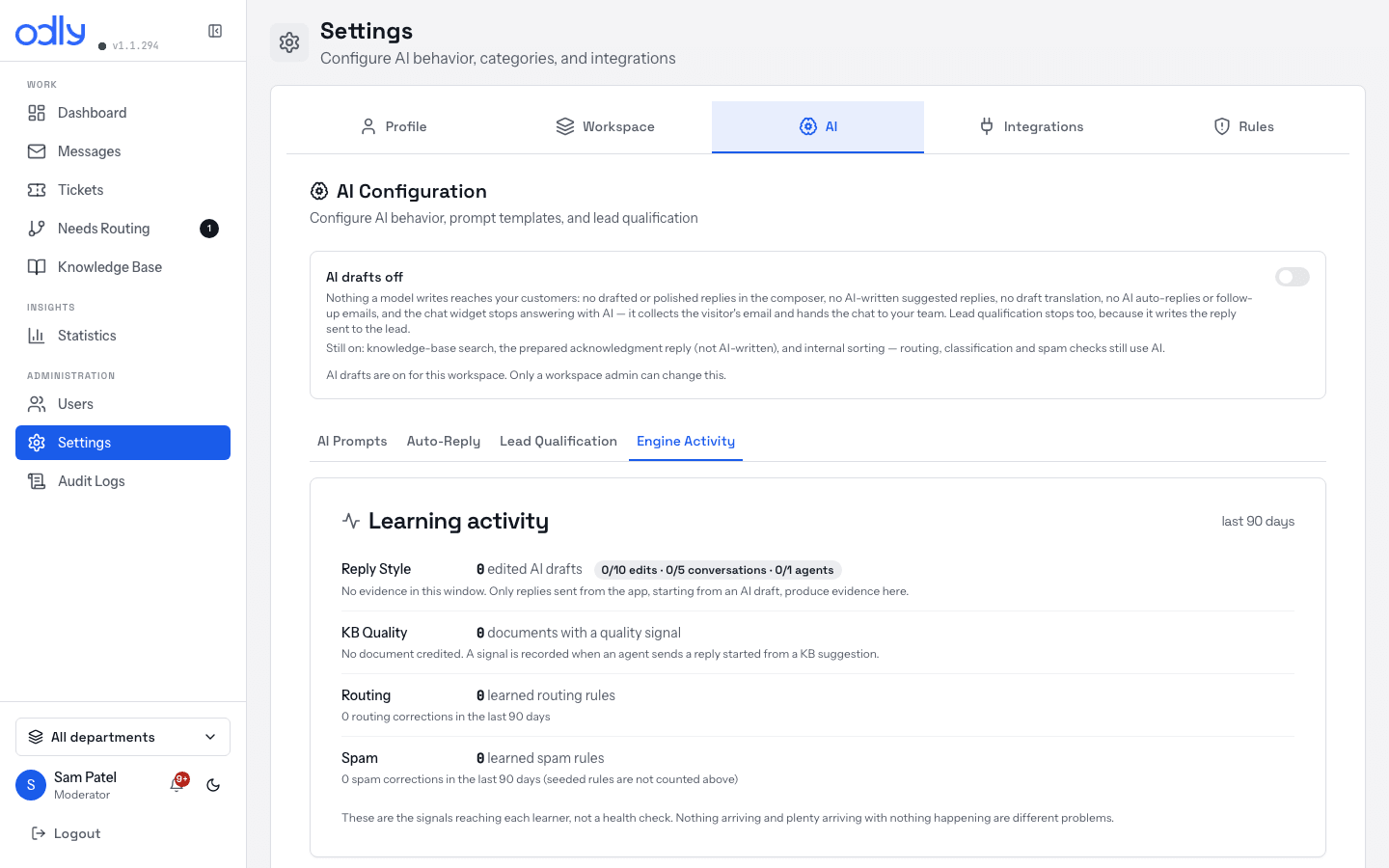
M3 Needs Routing + Engine Activity Seed: can't force — use live queue items / recent auto-actions
Needs Routing page — route what's there.Settings → AI → Engine Activity — accept/decline pending suggestions.The Engine Activity page — pending suggestions and recent auto-actions appear here (step 2’s screen) Done right: trainee links manual routes (with Create rule) to learned rules.
M4 Review SLA breaches Seed: short SLA target + an unanswered mail, or use history
Statistics → SLA numbers for the period.Open one breached thread end to end. ① the Recent SLA Breaches list (the SLA page — step 2's screen); the period numbers live under Statistics (step 1)Done right: trainee knows managers review, admins set thresholds.
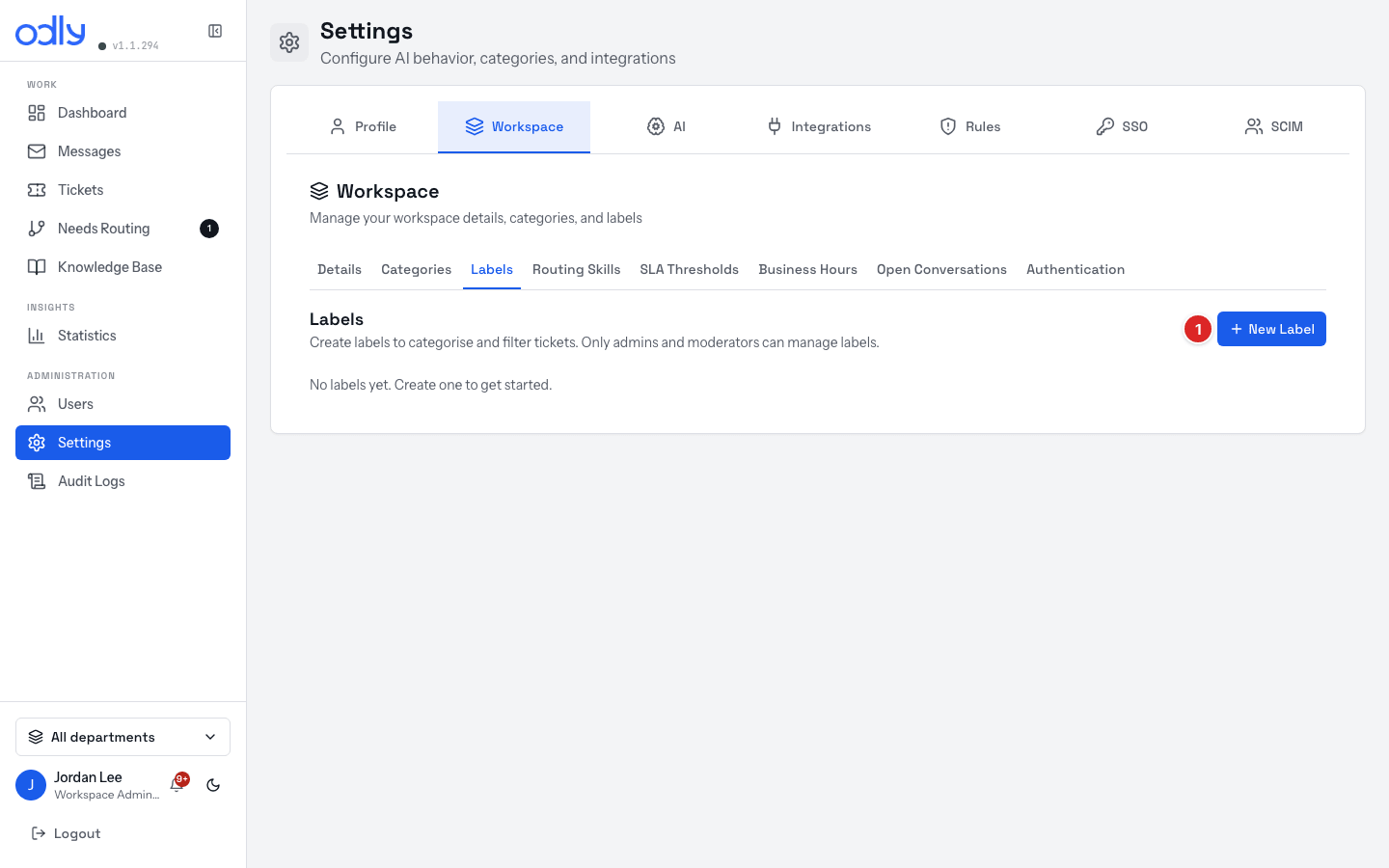
M5 Create and apply labels Seed: none needed — moderator+ creates labels
Settings → Workspace → Labels → create (name + color).Apply it from a conversation's header strip; filter the board by it. ① New Label (step 1)Done right: trainee knows agents can view/filter labels but not apply or create them.
Admin drills · role: org_admin
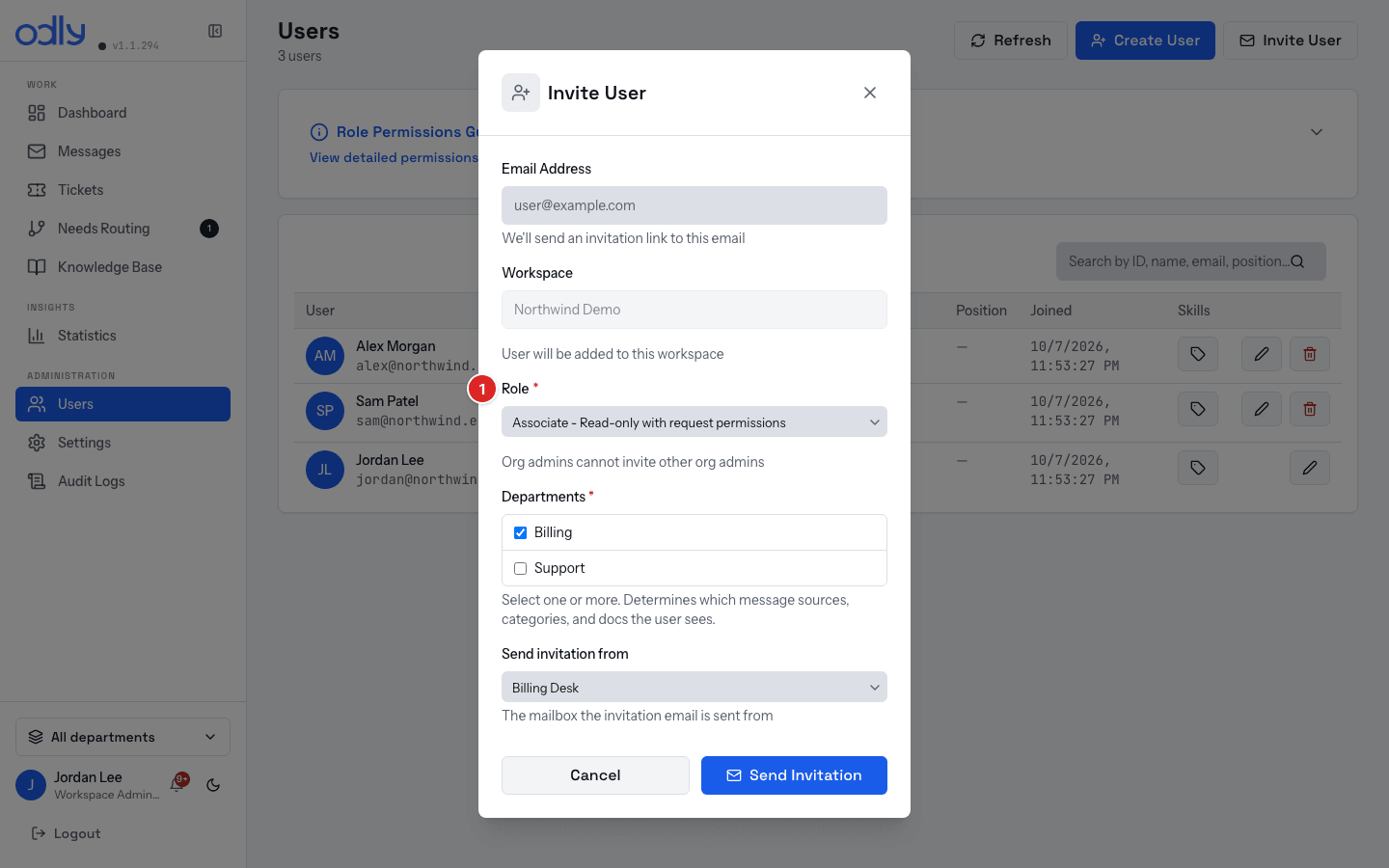
AD1 Invite a user with the right role Seed: a spare email
Users → Invite User → email → role Support - Manage tickets and messages → departments → Send Invitation .① the Invite User dialog — Email Address · Role (shown; org_admin is Platform-Admin-only) · Departments → Send Invitation Done right: trainee names all four roles and that only admins can grant org_admin.
AD2 Connect a mailbox source + departments Seed: test mailbox credentials
Settings → Integrations → Message Sources → connect → Test .Link to a department → send a mail → watch it land routed. ① Add Email — Telegram / Slack / WhatsApp cards sit beside itDone right: test mail becomes a conversation in the right dept.
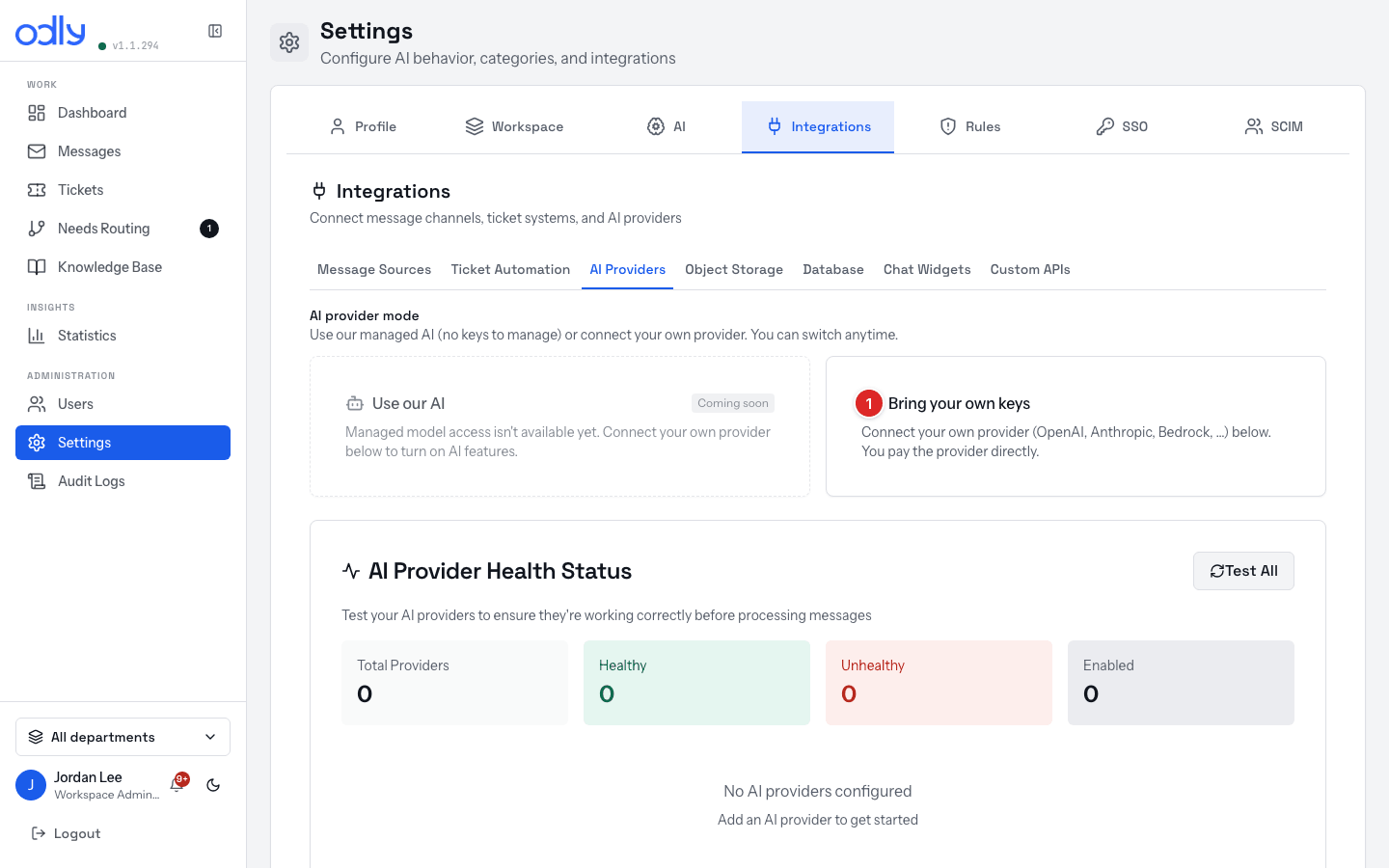
AD3 Configure an AI provider Seed: an API key (BYO on Free; managed AI covers the trial)
Settings → Integrations → AI Providers → add key → save.① Bring your own keys — paste the provider’s key on its cardDone right: trainee can explain managed-vs-BYO AI across trial and Free.
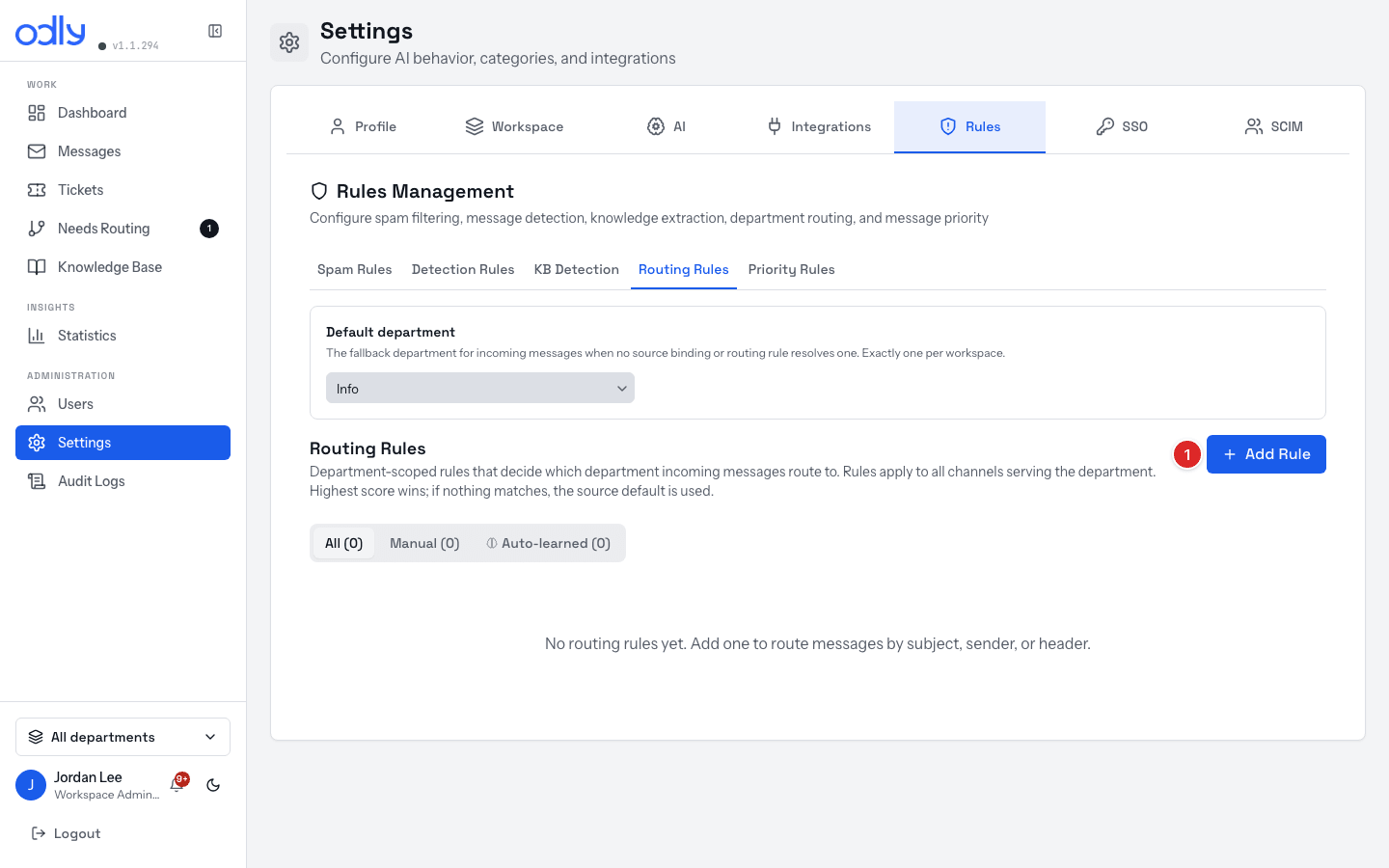
AD4 Write a routing rule and test it Seed: a keyword (e.g. "invoice" → Billing)
Settings → Rules → add rule (field, Value, department, score).Send a matching mail → watch it route → compare in Engine Activity. ① Add Rule — the Auto-learned tab lists the engine’s own rulesDone right: rule fires; trainee separates written rules from learned ones.
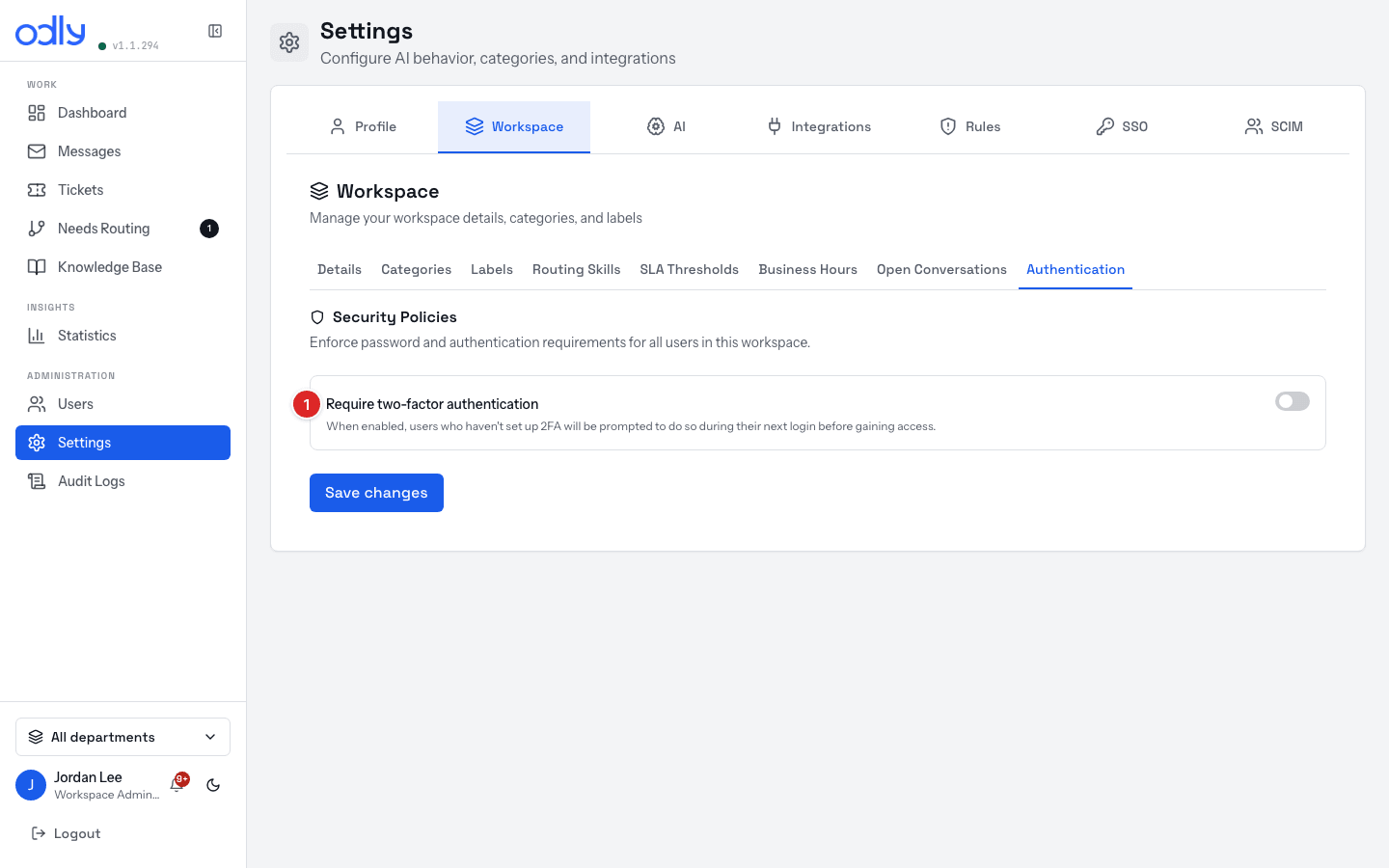
AD5 Security — require 2FA Seed: none
Settings → Workspace → Authentication → Require two-factor authentication → Save changes .① Require two-factor authentication , then Save changes Done right: users without 2FA get prompted at next login; SSO enforcement is Enterprise + IdP only.
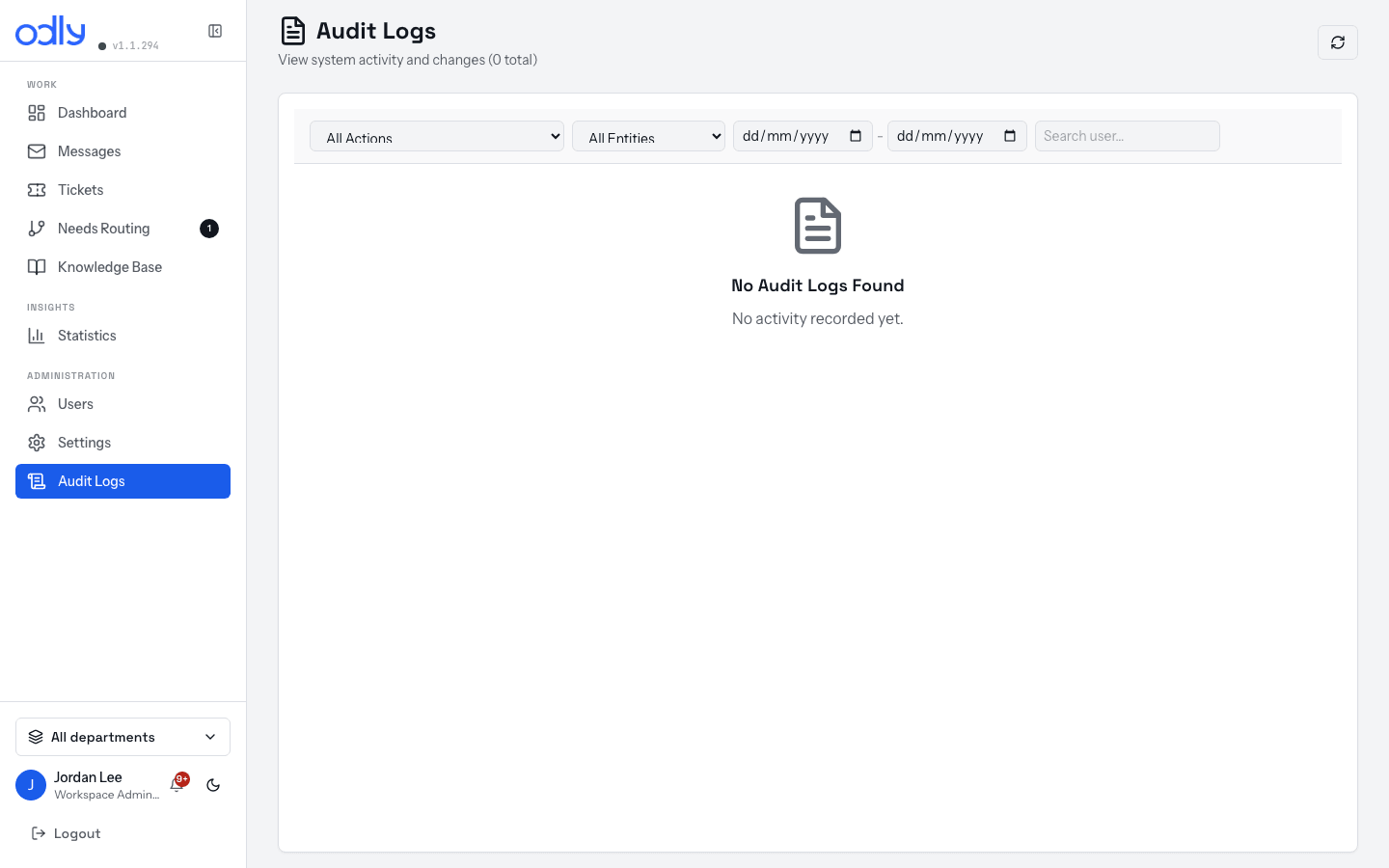
AD6 Find an action in Audit Logs Seed: do an auditable action first; Enterprise feature — on during trial
Open Audit Logs → filter for the action → read actor / action / timestamp. the Audit Logs view — filtered results list actor, action, entity and timestamp per row Done right: trainee finds the entry and knows audit is a plan feature.
Sign-off checklist
✓ Ready for the live workspace when the trainee can, unaided Tick each, then move them over — invite to live, deactivate in training
Claim, reply with/without a suggestion, and send.
Read the board — five statuses, triage columns, thread marks.
Use Internal note / POST NOTE vs SEND correctly.
Pick the right exit: Resolve · Resolve & save to KB · Not customer work · Resolve as spam.
Reassign with a note; park and release On-hold.
Create a ticket from ⋯ More actions.
Say what a customer reply does to Pending, On-hold, Resolved.
Pass the quiz: ≥ 16/20.
Self-check quiz · 20 questions
Answer before opening. Q16–Q20 are for manager/admin tracks.
1 · The KB tab shows a suggestion for this question — which button uses it?
Use in reply , then SEND (⌘↵) → status Pending. (Use it is the AI-draft panel, different thing.)
2 · You sent the reply — which status and what does it mean?
Pending — you replied last, ball is with the customer. Not On-hold; that's a parked state you set.
3 · The customer replies — what happens?
Pending → In Progress. A customer reply always means your turn; dark spine marks it.
4 · A newsletter arrived — which exit and why?
Not customer work — closes without claiming an answer; muted Closed chip, counts as closed, no SLA. Never Resolve or spam it.
5 · Obvious junk — which action, where does it land?
Resolve as spam → confirmed spam in the Spam pile, never Resolved, never resurfaces.
6 · A suspicious-flagged thread — first move, and what never?
Review without clicking links; then Not a Threat — Approve or escalate. Never click through a suspicious body.
7 · Thread is in the wrong department — where's the control, what's the catch?
The Dept value in the header strip (+ optional Create rule ). Catch: you can only route to a department you belong to.
8 · Where do unplaceable conversations go and who routes them?
The needs-routing mark → Needs Routing page (nav item only when non-empty). Anyone routes to a dept they belong to.
9 · Engineering bug — where's the ticket button?
⋯ More actions → Create ticket (Create lead ticket on a lead). Not the action strip.
10 · Same customer, two threads?
⋯ → Merge with another thread… → search → confirm. Same channel, ≤20; Unmerge exists.
11 · Blocked waiting on a colleague — which status?
On-hold via the header status control; a customer reply releases it automatically.
12 · Amber "At risk" badge then red — meaning? When does the clock stop?
Amber >80% of target, red Breached past it — answer those first. Resolved/closed keep a recorded result; spam has no SLA.
13 · Resolved thread gets a new customer reply — who reopens it?
Nobody — it reopens to Open itself (resolved and closed both). Confirmed spam never resurfaces.
14 · End of shift, thread half-done — two actions?
Internal note → POST NOTE, then Assigned → the colleague. Nothing customer-visible.
15 · WhatsApp thread quiet 30 hours — can you just reply?
No — outside 24h only approved templates send ("Continue with an approved template").
16 · (manager) One agent's backlog is double — where do you check?
Statistics → Team Performance → Open backlog ; reassign via Assigned + note.
17 · (manager) An agent saved to KB — is it live? Who decides?
Pending review until a moderator/org_admin approves on Knowledge Base → Pending (some auto-approve).
18 · (manager) Where do you review engine proposals?
Settings → AI → Engine Activity — pending suggestions + recent auto-actions; open to moderators for their domains.
19 · (admin) Second workspace for training — where, what cost?
Public /signup page (no token). Free 14-day trial, then Free caps — no charge unless you put it on a paid plan.
20 · (admin) Force 2FA for everyone — where, and the plan catch?
Settings → Workspace → Authentication → Require two-factor authentication . SSO enforcement + audit logs are Enterprise features.
Companion to docs/howto/training/ (trainer guide, week plan, drill cards) and the staff handbook.
Open in any browser; Print → Save as PDF to share. Verified against the app · 2026-10-07.