Odly is an intelligent requests hub — it unifies messages from every channel (email, Telegram, Slack, chat widget), automatically routes each to the right department, and drafts ready-to-send answers for agents from your knowledge base. This handbook is the whole thing in one place: Part 1 explains how the app fits together (diagrams); Part 2 walks four real journeys end-to-end; Part 3 is the step-by-step tasks, each task below now shows a real app screenshot with numbered callouts (the drawn mockups remain for the concept diagrams).
Checked against the app: v1.1.294 · 2026-10-07
Part 1 · How it works
1 · Navigation & who sees what
The left-hand menu is your map. Access depends on your role — here's who reaches each area.
Area
Agent support
Manager moderator
Admin org_admin
Dashboard
Messages (inbox)
Needs Routing
Tickets
Knowledge Base
view
curate
curate
SLA · Statistics
Deleted Messages platform admin only
—
—
—
Settings
—
most
Users · Organization
—
—
Audit Logs
—
Billing · Usage stats
view
view
full accessamber = partial / view-only— no access(a fourth role, associate, is read-only: it can view tickets, messages and statistics and request a change — which a manager or admin then actions — but can't reply, resolve, or route)
Your landing screen is the Dashboard — at-a-glance stat cards plus a knowledge-base snapshot. When a message source is configured, everyone also gets Quick Actions there (Start All Services, Email, Telegram) to pull mail on demand instead of waiting for the next automatic check.
2 · The four roles
Every person has one role. Each rung adds to the one below it. The handbook uses the friendly names; the app shows the system name.
Admin
Runs the organization. Users, departments, channels, AI, billing — full control. org_admin
Manager
Leads the team. Everything an agent does, plus assignment, SLA oversight, routing tuning, label management, integrations, and KB curation. (Message deletion is admin-only.) moderator
Agent
Works the inbox. Read, reply, resolve, create tickets, correct routing. No settings. support
Read-only
Looks, doesn't touch. Views tickets and messages, can request changes. associate
3 · The life of a message
Every conversation moves through these states. You set some; the system sets others as things happen.
Work status:openin progresspendingon holdresolved
Triage piles:not analysedspamarchivedother
Marks on a thread:suspiciousneeds routing
A conversation has two independent axes. Work status is the human workflow, derived from who replied last: open (no replies) → pending (you replied last, awaiting the customer) ⇄ in progress (customer replied last, your turn); on hold is a conversation you parked. The triage piles hold mail the system set aside before/aside from active work; suspicious and needs routing are marks an ordinary thread wears while it sits in a work lane (see the routing diagram).
Resolve from any active state: whether a conversation is Open (customer replied), In progress, Pending or On hold, the decision row under the composer offers the same endings — Resolve, Resolve & save to KB, Not customer work, and Resolve as spam. (Save-to-KB needs an answer to capture — a thread the customer never wrote in offers just Resolve; filtered/spam/suspicious threads show their own banner instead of the row.) Not customer work lands the thread in the Resolved column too — but under a muted grey "Not customer work" chip, and it never counts as a resolution. Resolve as spam keeps the thread filtered in the confirmed Spam pile, so it never appears in Resolved. And if the customer writes again to a resolved or closed conversation, it automatically reopens so nothing slips through.
Before it ever reaches you: new mail is auto-checked. Suspected junk lands in the
spam pile or wears a suspicious mark in the work lanes, and anything the router can't confidently place is marked needs routing (see next diagram).
4 · How the learning engine works
The engine writes new rules by watching how your team works. The loop below shows routing — the mature, fully-automated domain — but the same loop runs for other domains too (spam, detection, and more coming online). Correcting the app isn't just fixing one message; it's training the system.
The takeaway for agents: route mail where it truly belongs, mark true spam, approve
good KB answers — consistently. Every one of those is training data. The engine learns across
routing, spam, detection, contradiction, KB quality and auto-reply; routing is fully
automated today and the rest are progressively coming online.
5 · Message → Ticket → Jira
Most conversations are just answered and resolved. Promote one to a ticket only when it needs tracking — and to Jira only when engineering owns it.
6 · Your department map
The six departments in your workspace and the kind of mail each owns — with the real categories configured in Odly.
general information & account questions — “what is”, “where can I find”, “update my details” — and the org-wide fallback: anything the router can't confidently place lands here
Marketing
Brand Collaboration
Influencer & UGC Outreach
Marketing Internship
Press & Media Inquiry
Sponsorship & Partnership
“partnership”, “press”, “sponsor”, “collab”
7 · The inbox at a glance
Where you spend your day. Everything on a conversation card tells you something — here's the anatomy.
7ResolveResolve & save to KBNot customer workResolve as spam
1
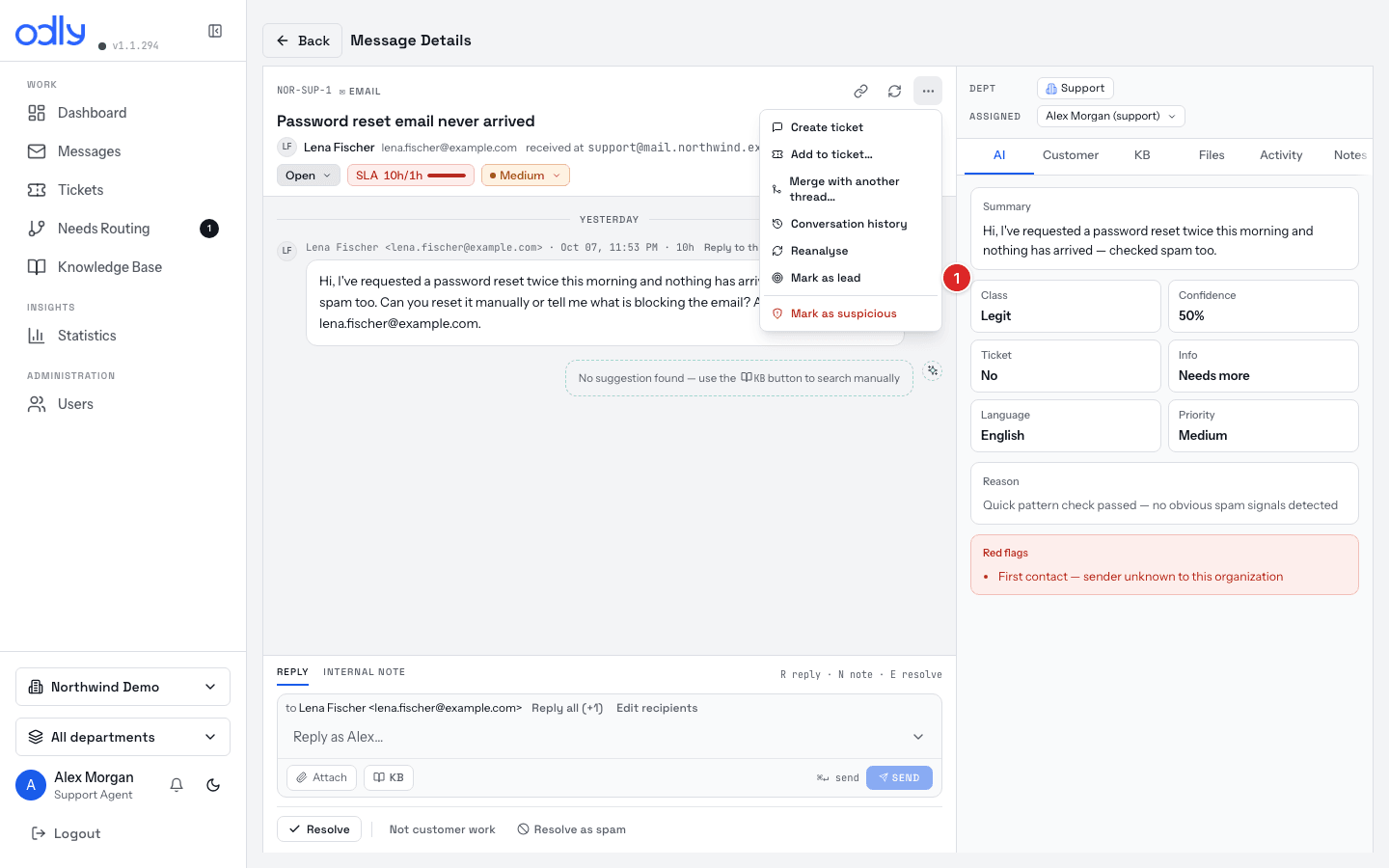
Header. Sender, subject, status, priority — plus a ⋯ More actions menu (Create ticket / Create lead ticket on a lead, Add to ticket…, Merge with another thread…, Conversation history, Reanalyse, Check contradiction, Mark as lead, Mark as suspicious, and — org admins only — Delete message; on phones it also holds Copy link, Refresh thread and the read toggle). Change the department from the Dept picker in the header strip (not the More menu).
2
SLA bar. How much time you have before the target is missed.
3
Tabs. AI, Customer, KB, Files, Activity, Notes, Conflict. (The thread itself is the main pane, not a tab.) A Lead tab appears only once a message is marked as a lead.
4
Thread. The full back-and-forth; your replies vs the customer's.
5
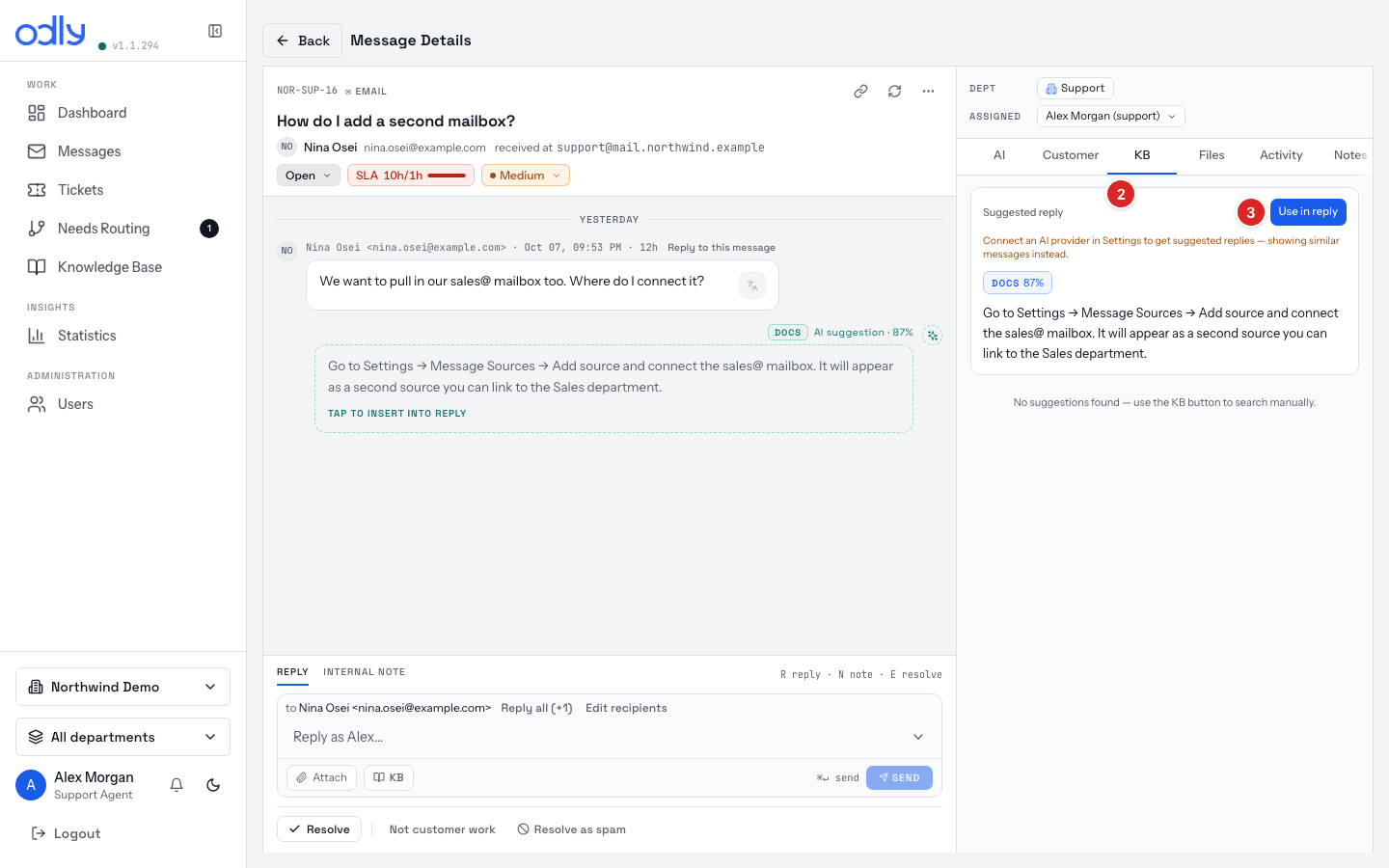
Suggested reply. A drafted answer on the KB tab — click Use in reply, edit it, then send. Nothing goes out on its own.
6
Composer. Switch between a customer Reply and an Internal note; attach files; insert KB; send with ⌘↵.
7
Decision row. Resolve — plain or saving to the KB — or bin it (Not customer work / Resolve as spam). Turning it into a ticket lives in ⋯ More actions.
Part 2 · End-to-end scenarios
Four realistic journeys that stitch the individual tasks below into a full story — follow the timeline and see how a conversation moves through its statuses and across the team. Want more? The training pack turns the same scenarios into hands-on
drills, a week-1 plan, and a quiz for new hires.
A
A stuck customer gets unblocked
Support · from first email to a saved KB answer
Agent
A customer emails “can't log in after resetting my password.” It's auto-routed to Support and lands in the inbox as open.
You click Claim to own it, open the KB tab, and see a suggested answer about reset links expiring. → Task 1
You click Use in reply, tweak the wording, and SEND (⌘↵). Status moves to pending (awaiting the customer).
The customer replies “that worked, thanks!” → in progress (your turn again).
Since this will come up again, you click Resolve & save to KB → resolved, and the answer now powers future AI suggestions. → Task 7
B
A hot lead comes in
Sales · from a chat message to a tracked opportunity
Agent
A visitor asks via the chat widget: “interested in the Enterprise plan for ~40 seats.” The AI auto-marks it a Lead and routes it to Sales.
You open the Lead tab and check the captured name, company, and interest — fixing anything the AI missed. → Task 5
You click Create lead ticket so it's tracked through the pipeline, and reply fast with next steps.
Because it's a large deal, you add an Internal note and reassign it to a senior rep via the assignee avatar. → Task 6
Your manager watches enterprise leads under Statistics (Overview, Performance, Team Performance — plus Diagnostics and Token Usage for admins) and steps in if one stalls.
C
A refund request, handled cleanly
Billing · agent + manager, with an audit trail
Agent → Manager
An email “please refund last month's charge” routes to Billing.
You verify the account and the charge — without promising a refund yet. You keep your reasoning in an Internal note.
You open ⋯ More actions → Create ticket (→ Task 2), set its priority to high, and escalate to a manager / finance for approval — captured in the ticket, your notes, and the audit trail for a manager to review.
Your manager reviews and tags the conversation with a Refund pending label (creating new labels is a manager / admin action), then approves.
Once approved, you reply confirming the refund and click Resolve & save to KB (or plain Resolve if the answer isn't reusable).
An ambiguous email arrives that the router can't confidently place, so it's marked needs routing.
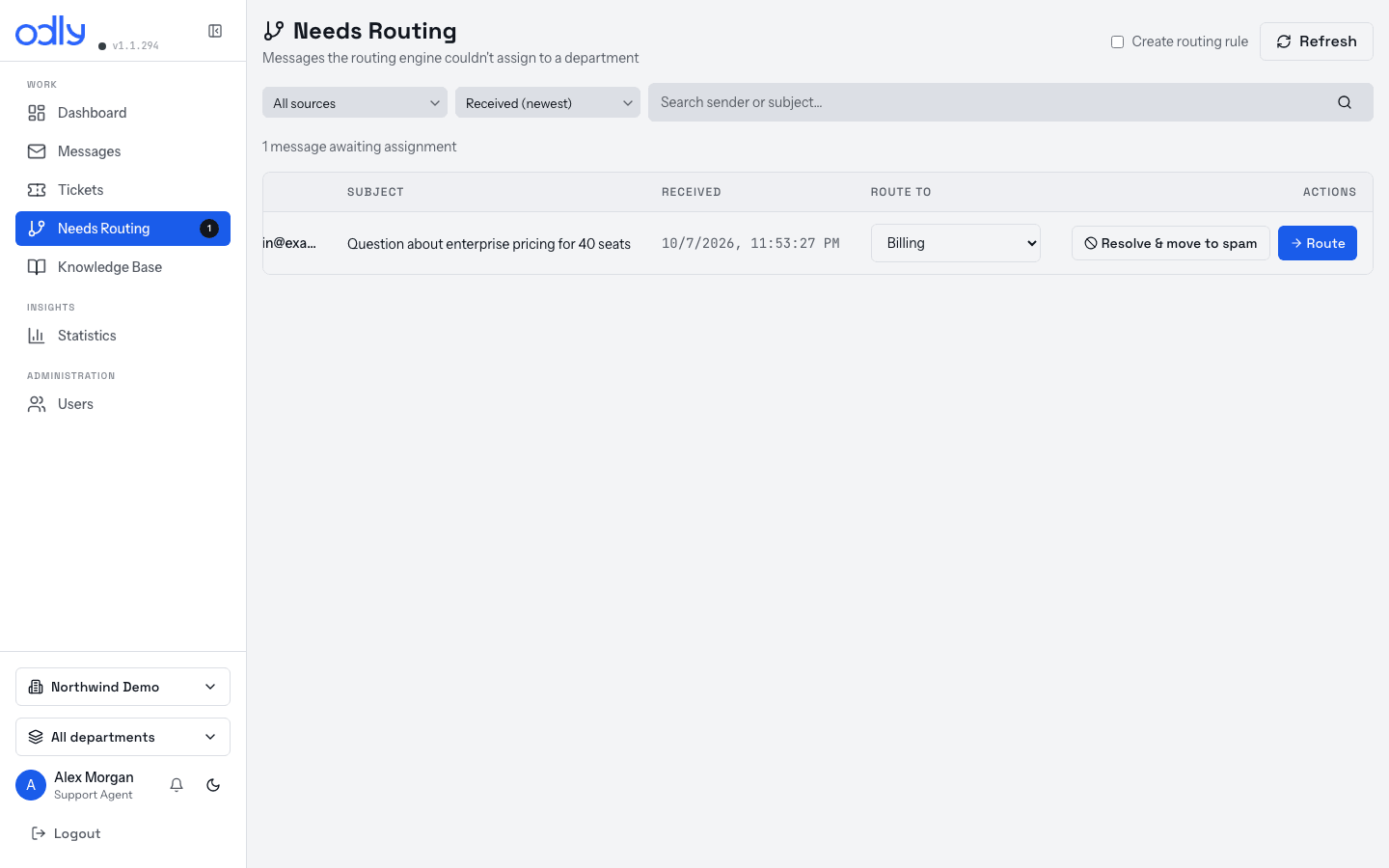
In the Needs Routing queue you read it, pick Billing, and click Route. → Task 3
You (and teammates) keep routing similar mail the same way. The learning engine notices the pattern.
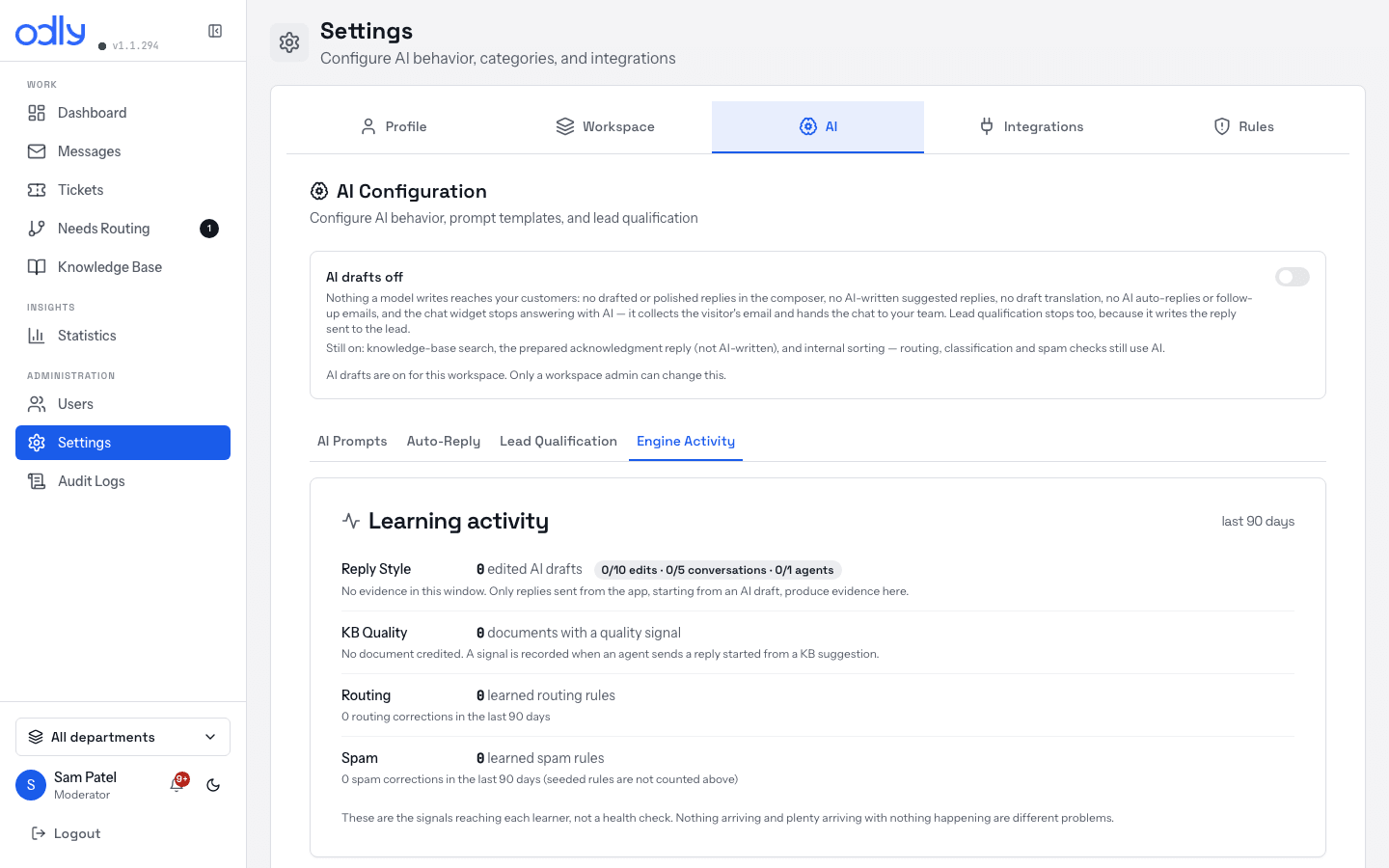
An admin opens Engine Activity, sees the proposed rule with its evidence, and clicks Accept. → Task 9
From now on, that kind of mail auto-routes to Billing — it never hits Needs Routing again.
Part 3 · Step-by-step tasks · for agents
1
Answer & resolve a customer message
The core loop — you'll do this dozens of times a day.
Agent
In the Inbox, open the conversation. If it's unassigned, click Claim to take ownership.
Read the thread. Open the KB tab for a suggested answer (the AI tab shows the analysis — category, priority, summary).
Click Use in reply on a good suggestion — it drops into the composer as an editable draft.
Edit it to fit the customer, then click SEND (or press ⌘↵).
When it's solved: if the answer is reusable, click Resolve & save to KB; otherwise Resolve. (Mail that wasn't real work — newsletters, auto-mail — gets Not customer work, and junk gets Resolve as spam.)
② the KB tab · ③ Use in reply — the suggestion drops into the composer (steps 2–3)
Nothing is sent automatically — you always edit and send the reply yourself.
Before you send: the Conflict tab (or ⋯ More actions → Check contradiction) flags where your draft or the KB answer contradicts something this customer was already told — worth a glance on anything sensitive.
2
Turn a message into a ticket
When it needs tracking, ownership, or engineering.
Agent
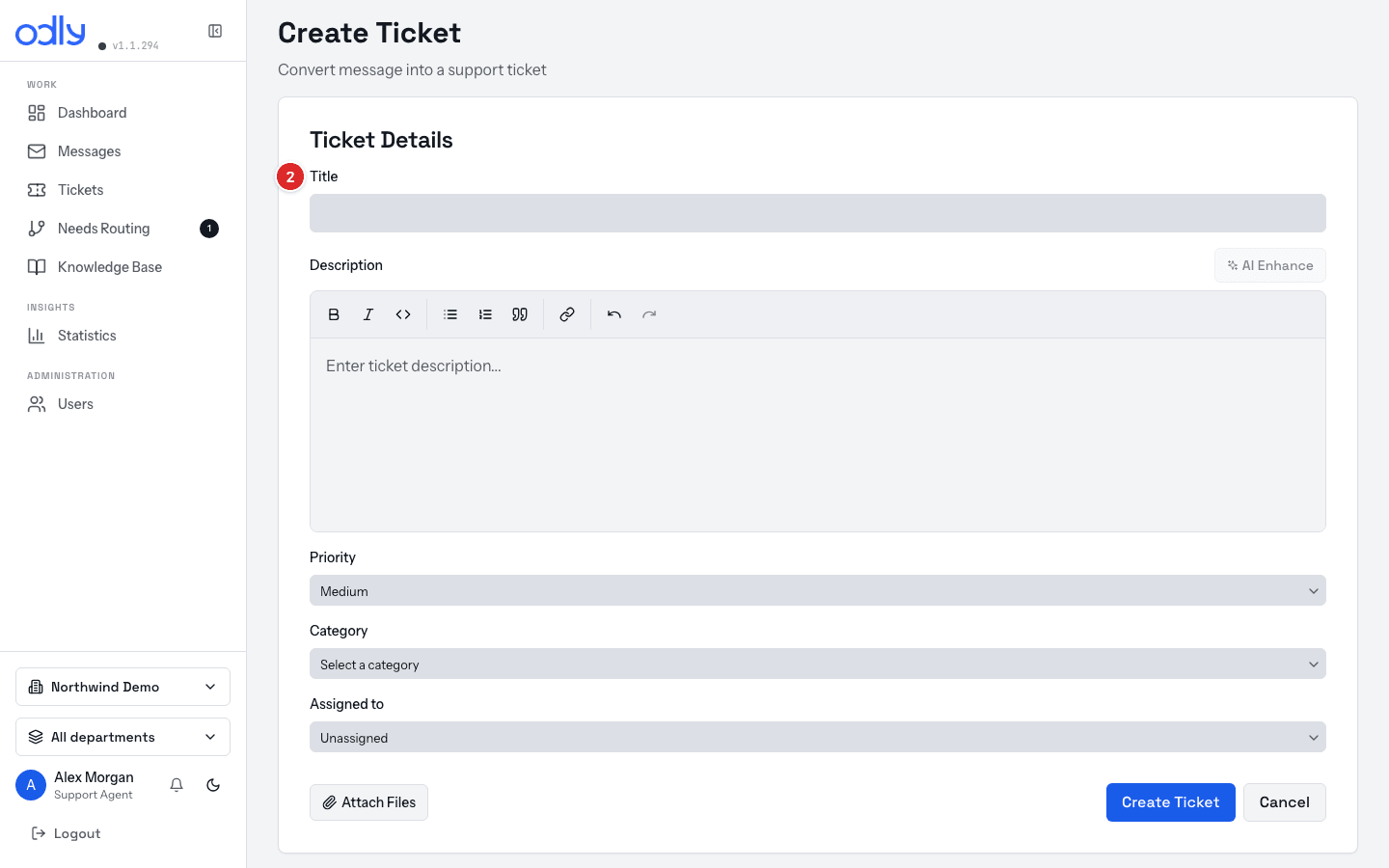
In the conversation's ⋯ More actions menu, click Create ticket — the form is pre-filled from the message.
Set the Title and Priority; optionally add a Category and Assignee. AI Enhance can polish the description.
To involve engineering, tick Sync to Jira (or Push to Jira later). Synced tickets are then edited in Jira, not Odly.
Track it in the ticket's Comments tab — tick Internal for team-only notes — and add files in Attachments.
② the form — Title, Description, Priority… Create ticket saves it
Most messages don't need a ticket — they're just answered and resolved. Reach for a ticket when work spans replies or teams.
3
Route a message from Needs Routing
When the router couldn't decide a department.
Agent
Open Needs Routing from the left menu.
Click a row to read the message if you're unsure where it belongs.
Pick the correct department from the dropdown.
Click Route — it moves to that department's queue. If it's junk, click Resolve & move to spam instead.
the Needs Routing queue — pick a department per row, then Route
Every routing decision trains the learning engine — route accurately and less lands here over time.
4
Handle spam & suspicious mail
When a thread wears a Suspicious mark or lands in the Spam pile.
Agent
Open the flagged conversation and read it. (Spam is a triage pile; Suspicious is a mark on an ordinary thread — see §3.)
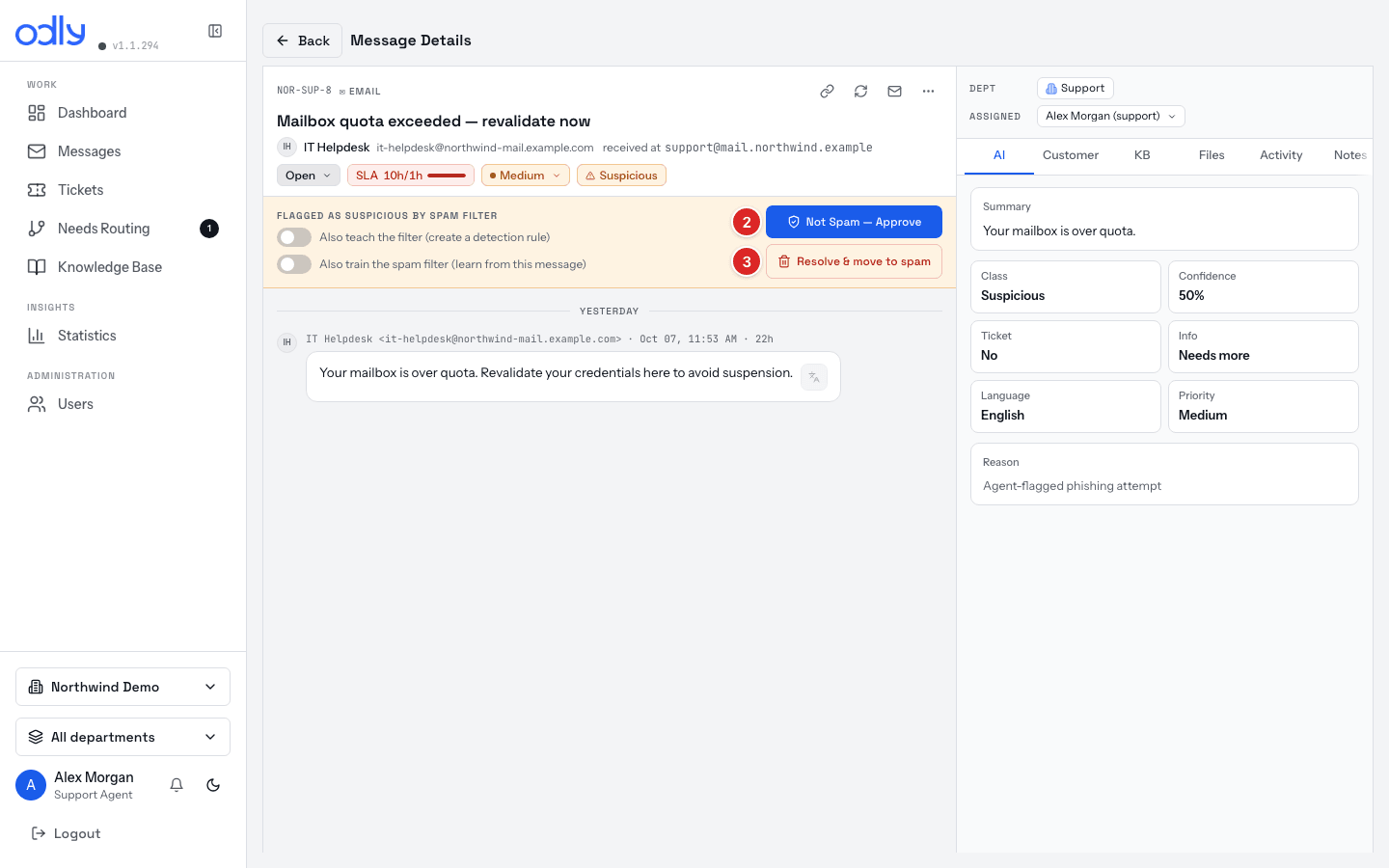
If it's legitimate, click Not Spam — Approve to move it into the active inbox.
If it's genuine junk, click Resolve & move to spam (or Resolve as spam on the decision row).
If it's phishing or a scam, don't just dismiss it — approve only if safe, and escalate the threat to a manager. (For a flagged threat the app relabels the approve button Not a Threat — Approve and hides the move-to-spam button.)
② Not Spam — Approve (phishing/scam flags label it Not a Threat — Approve) · ③ Resolve & move to spam for junk
Your spam and approve decisions also train the engine to filter better next time.
5
Handle a sales lead
When a message shows buying interest (or is auto-marked Lead).
Agent
If it isn't flagged already, open the More menu and choose Mark as lead.
Open the Lead tab and check the captured details (name, email, company…). Edit anything the AI missed.
Click Create lead ticket to track it through the pipeline.
Reply fast with clear next steps — speed wins deals.
① Mark as lead (step 1) — on a lead the menu offers Unmark as lead / Not a lead — close
In Sales, mark leads liberally so nothing slips through.
6
Hand off to a teammate
When someone else should take it, or you need input.
Agent
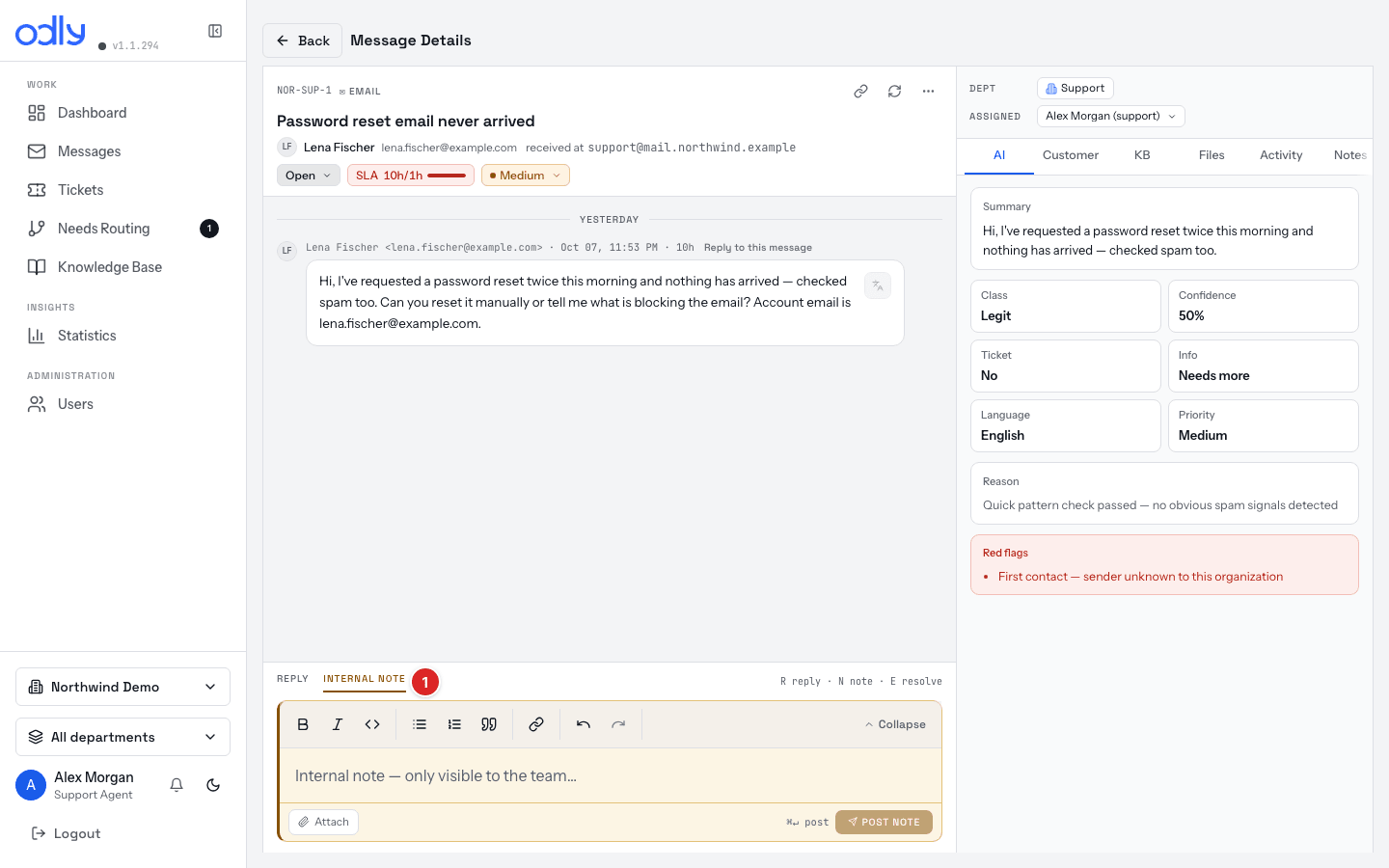
Switch the composer to Internal note mode and write the context — this is internal only, never sent to the customer.
Reassign by clicking the assignee avatar on the conversation and picking a teammate.
If it belongs to another team, change the department from the conversation header.
① INTERNAL NOTE — POST NOTE sends it to the team only (step 1)
Notes keep the full context for whoever picks the conversation up next.
For managers · knowledge & oversight
7
Grow & tidy the knowledge base
Everyone saves; managers and admins review & approve what's captured.
Manager · Admin
Where: Knowledge Base (left menu)
Anyone: when resolving, choose Resolve & save to KB to capture the question & answer.
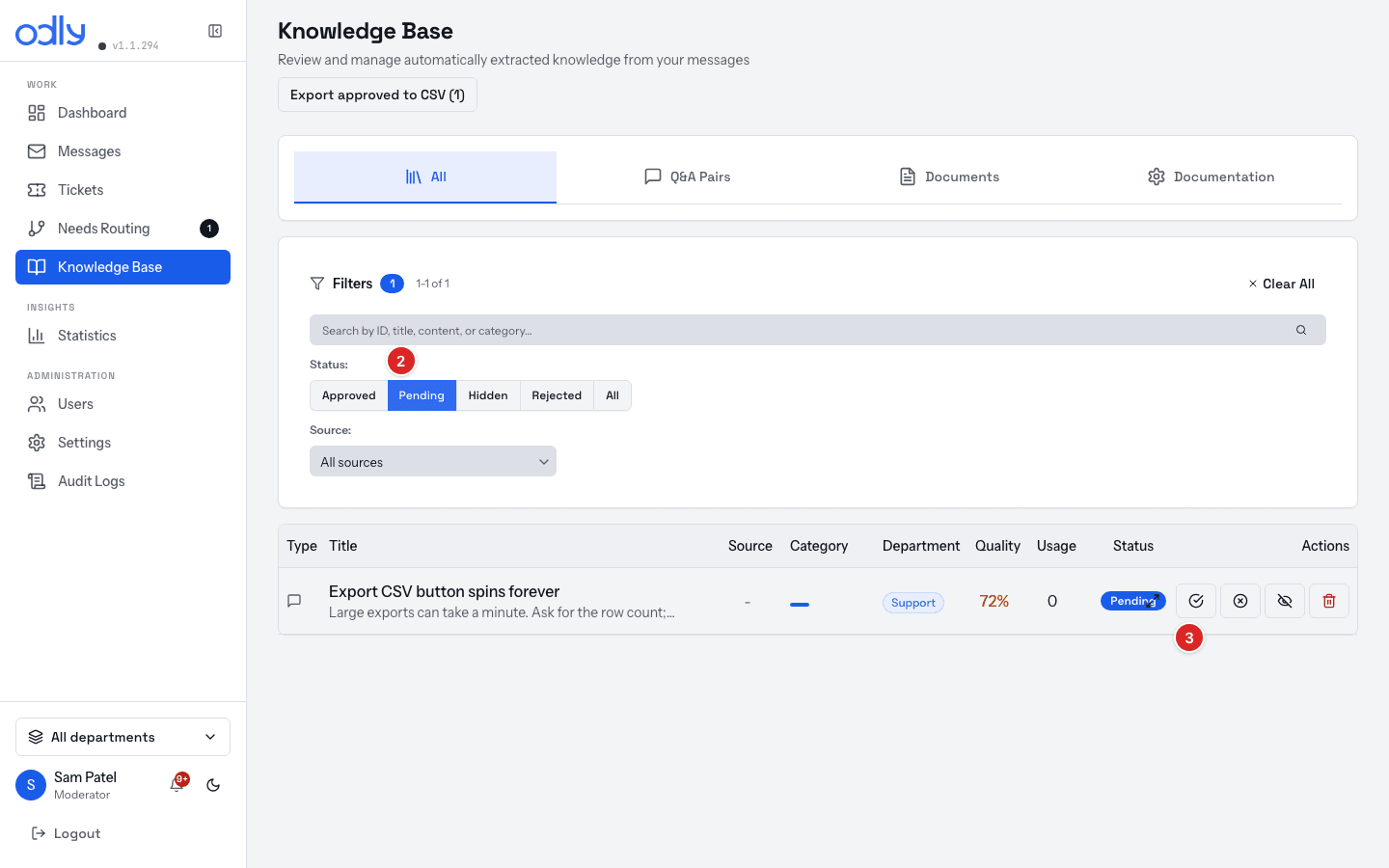
Open Knowledge Base and filter to Pending.
View each entry, then Approve the good ones, Edit the almost-good, or Hide the noise.
② filter to Pending · ③ Approve on an entry (or Reject / Edit)
A clean, approved KB means better AI-suggested replies for the whole team. Clear the Pending queue weekly.
8
Tune a routing rule
When mail keeps landing in the wrong department.
Manager
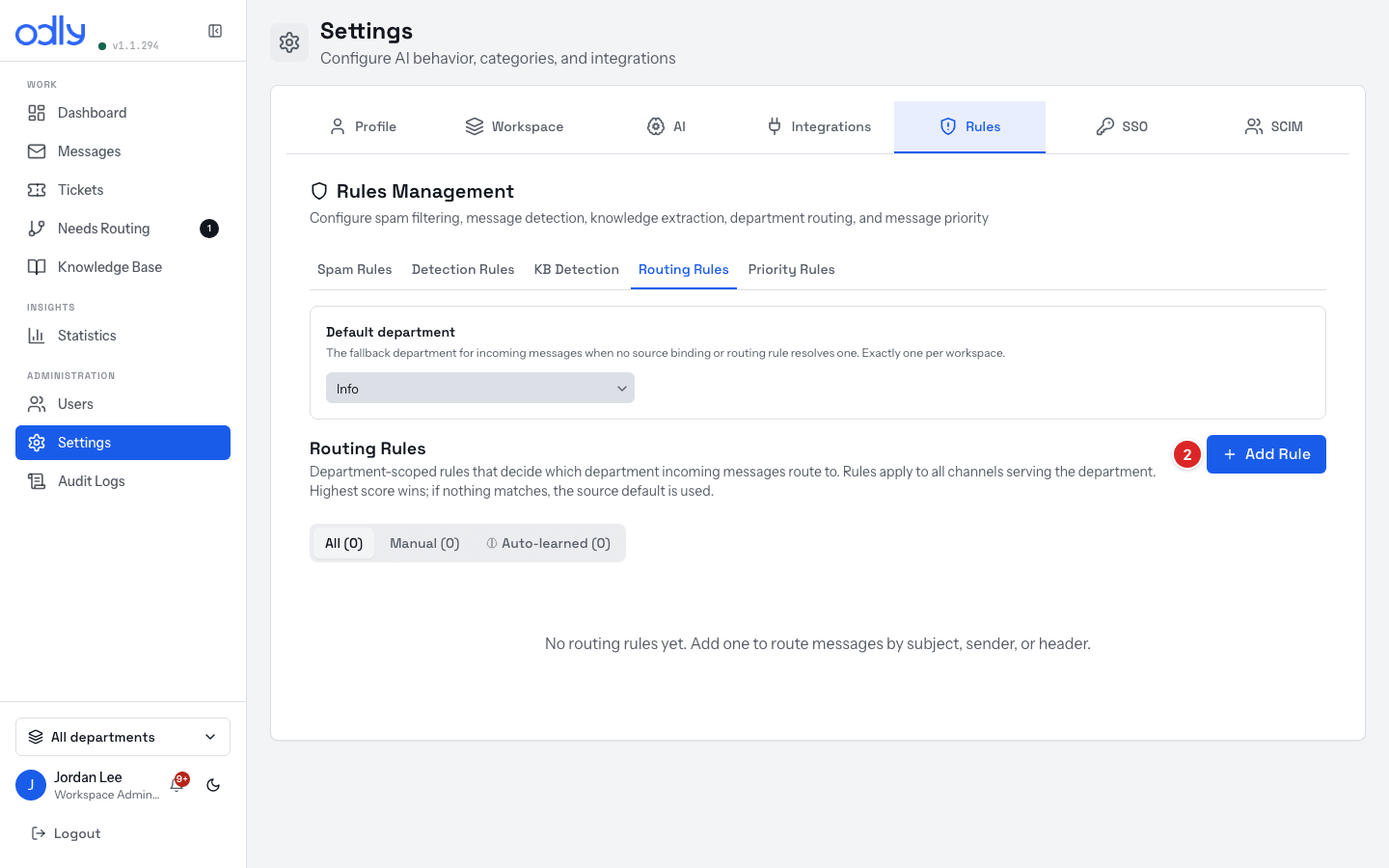
Where: Settings → Rules → Routing Rules
Open the routing rules and filter by All / Manual / Learned.
Create or open a rule: pick the target department and a type (subject contains, body contains, sender domain, …).
Set the Value and Example phrases, then adjust the score (higher wins when several rules match).
Toggle Enabled — and disable a Learned rule that's grown too broad.
② Add Rule (step 2) — the Auto-learned tab lists engine-made rules
The strongest fix isn't the rules screen — it's the team routing consistently, which is what the engine learns from.
9
Review the learning engine's suggestions
Approve or reject what the engine proposes across its domains.
Admin
Where: Settings → AI → Engine Activity (and Learning Trust)
Open Engine Activity to see proposals grouped by domain (routing, spam, detection, …).
For each, check the summary, confidence, and evidence count.
Click Accept to apply it, or Decline (optionally with a reason).
For a routing conflict, expand the evidence and Edit one rule to tighten it, or Merge the two.
Set how boldly it acts under Learning Trust — Manual, Balanced, or Aggressive.
Engine Activity — pending proposals and recent auto-actions appear here (step 1)
Start in Manual or Balanced; move to Aggressive once you trust what it's proposing.
For admins · setup
10
Connect a mailbox (or other channel)
When adding a source that feeds the inbox.
Admin
Where: Settings → Integrations (the on-screen tab)
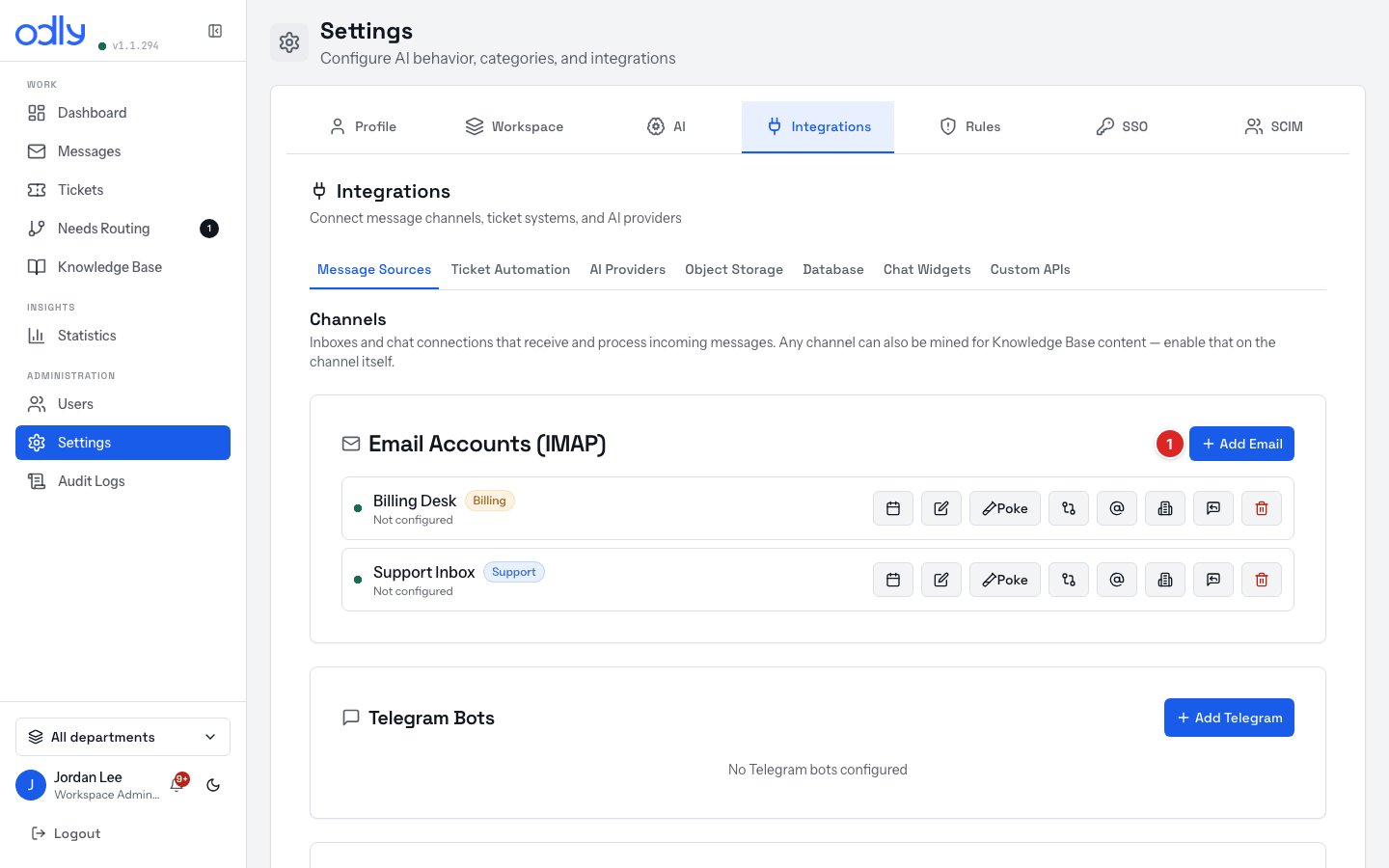
On the Integrations tab, pick a message-source card — Email, Gmail, Telegram, or Slack. (The same screen also holds the Jira card used in Task 2 to link tickets.)
Email (IMAP/SMTP): enter host, port, address, password, and the TLS setting. Gmail: use the OAuth sign-in instead.
Choose the search criteria and lookback window, then assign the department(s).
Save — new mail now flows into the inbox. (Telegram/Slack use a bot token; Slack is event-driven, no polling.)
① Add Email (step 1) — Telegram / Slack / WhatsApp cards sit beside it
Flag a source as a Knowledge Base source to also mine its content for Q&A pairs.
11
Invite a teammate
When adding a new person to your organization.
Admin
Where: Users (left menu)
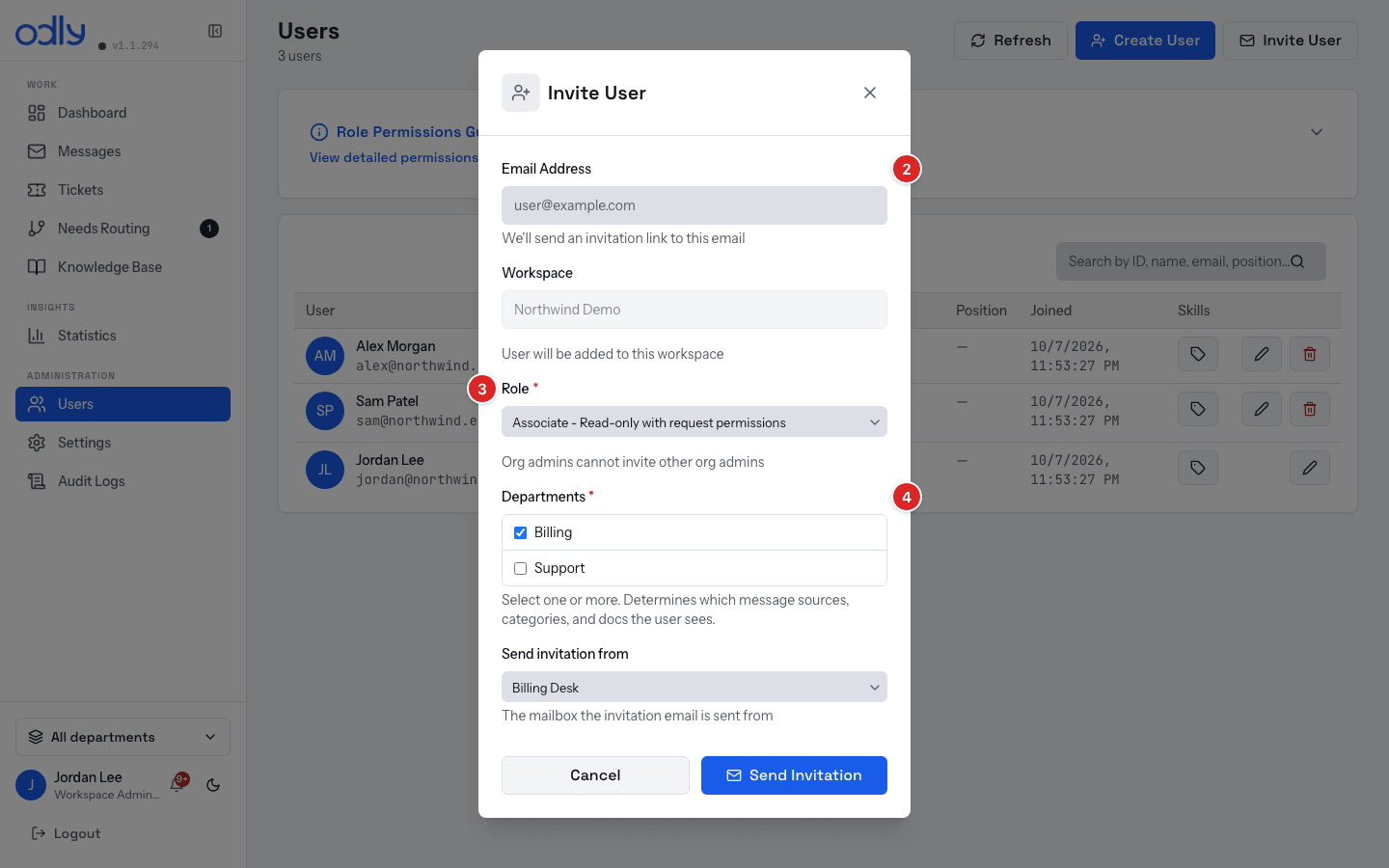
Open Users and click Invite User.
Enter their email address — invites go to the workspace you're working in.
Choose a role — Agent (support), Manager (moderator), read-only (associate), or Admin (org_admin, Platform Admin only).
Assign their department(s) and send — they'll get an email to set a password.
② Email Address · ③ Role · ④ Departments — Send Invitation mails the link
Give people the minimum departments and role they need; you can always adjust later.
Account security: invited users set their own password from the email link, then enable 2FA under Settings → Profile. Admins can require org-wide 2FA and a password policy under Settings → Workspace → Authentication.
12
Set up AI for your organization
To enable suggested replies, analysis, and auto-reply.
Admin
Where: Settings → Integrations → AI Providers, then Settings → AI
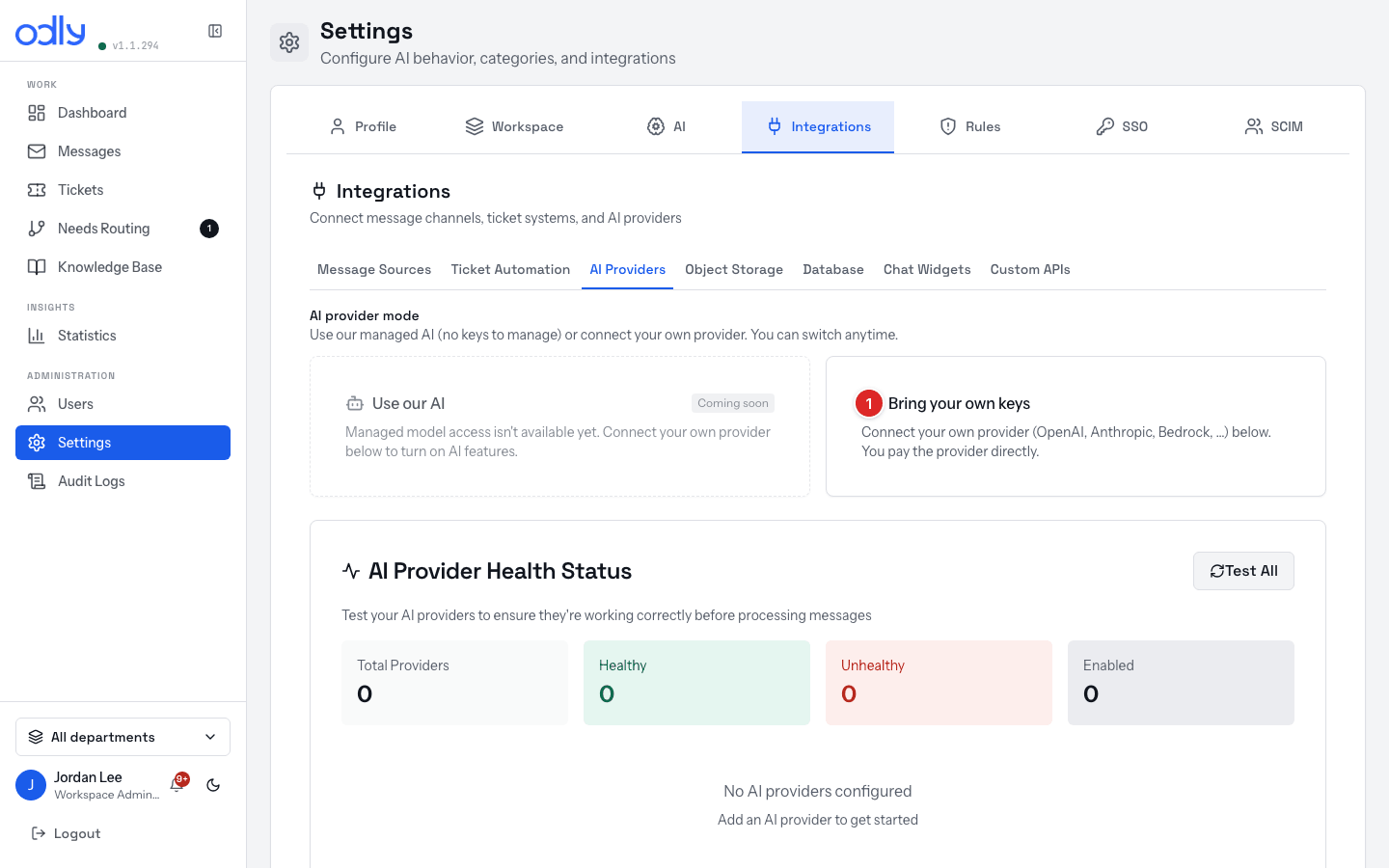
Open Settings → Integrations → AI Providers, pick your provider card, and paste that provider's API key (Odly is bring-your-own-key). Providers: OpenAI, Anthropic, DeepSeek, Perplexity, Qwen, AWS Bedrock, Ollama, or a Custom OpenAI-compatible endpoint.
Choose the model for that provider.
Under Settings → AI → AI Prompts, review the prompts & model settings the AI uses for analysis and drafting.
Configure Lead qualification (which fields to collect) and Auto-reply (whether AI may draft/send, and its guardrails) on the same Settings → AI tab.
The same tab governs the learning engine — set the Trust Mode under Learning Trust and review proposals in Engine Activity (see Task 9).
① Bring your own keys — paste the provider’s key on its card (step 1)
You enter the provider's API key yourself on its card in Settings → Integrations → AI Providers — it's per-organization (bring-your-own-key), no platform admin needed. Without a provider, the full manual workflow still works — you just don't get drafted answers.
13
Set your SLA targets
Define the response and resolution times the team is held to.
Admin
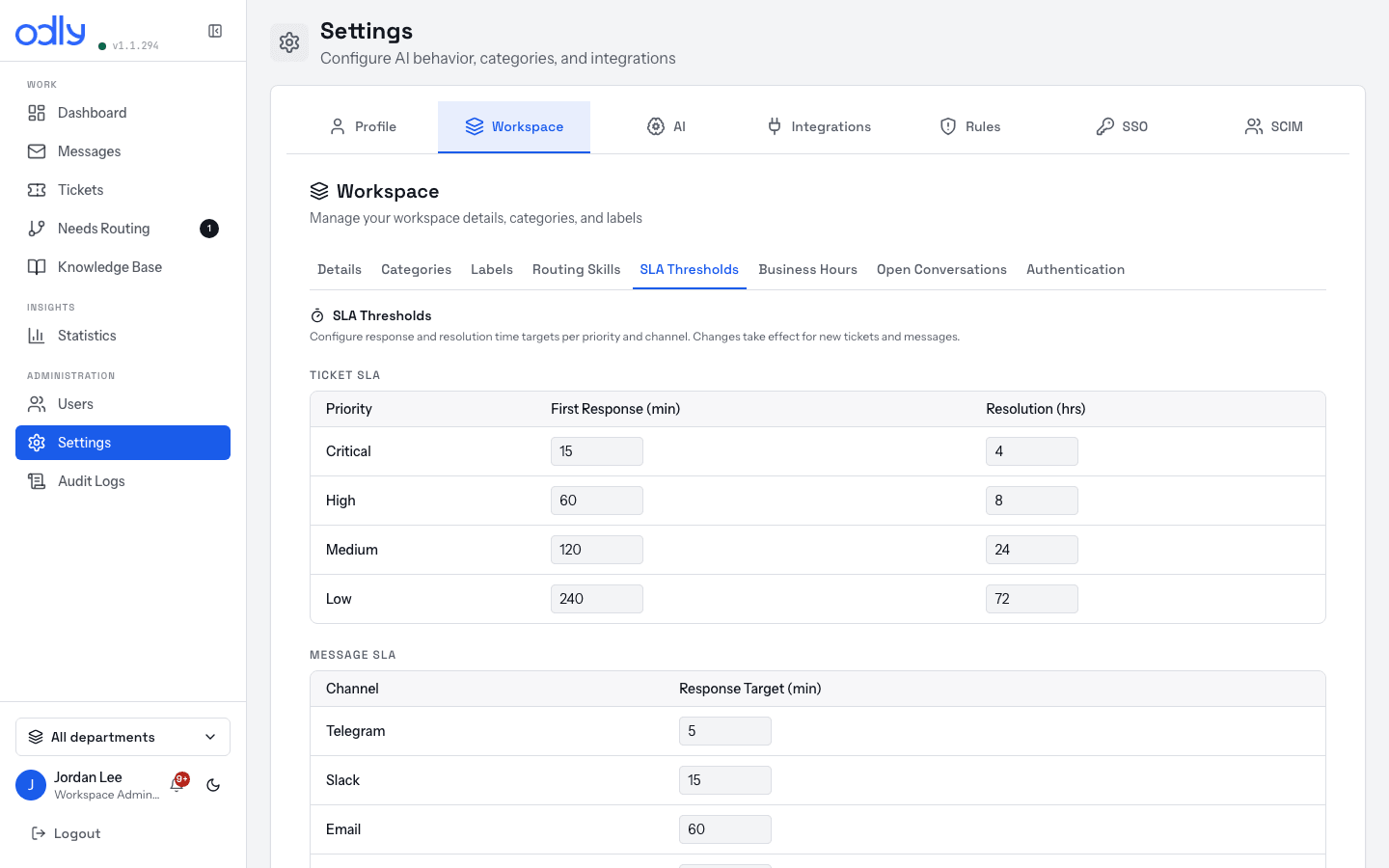
Where: Settings → Workspace → SLA Thresholds
Open SLA Thresholds.
For Ticket SLA, set a first-response (minutes) and resolution (hours) target for each priority — Critical, High, Medium, Low.
For Message SLA, set a first-response target per channel — Email, Telegram, Slack, Chat/Widget, Other.
Save — targets apply to new tickets and messages and drive the SLA breach / at risk flags.
SLA Thresholds — per-priority and per-channel targets
Set targets you can actually hit — breaches are only a useful signal if the bar is realistic.
14
Add a department
When you need a new team queue (e.g. a new HR or Marketing desk).
Admin
Where: set up during onboarding — no self-serve screen yet
Decide the essentials: the department name, and which mail, sources, and people belong to it.
Odly has no self-serve "Departments" form today — contact your Odly onboarding / platform contact to create it.
Once it exists, link message sources to it and add routing rules & skills that target it.
Grant the right users access to the department (see Task 11 / edit users).
Heads-up: if you try to add a source with no departments yet, the integration card shows "No active departments. Create one before connecting a source." — that's your cue to reach out to onboarding first; there's no form behind that prompt.
Departments
No self-serve form yet
→ contact onboarding
Then, once created:
link sourcesadd rulesgrant users
Keep departments few and non-overlapping — clear boundaries make routing and the learning engine far more accurate.
15
Restore a deleted message
When a conversation was removed and needs to come back.
Open Settings → System → Deleted Messages — it lists everything soft-deleted from the inbox.
Find the conversation and click Restore to return it to the active inbox in its previous state.
To remove stale deletions for good, use the Permanently Delete purge (older than N days) — this can't be undone.
Deleted messages
Anna Meyer · Old newsletter reply
RestorePermanently Delete
Restore and the permanent purge are platform-admin only — an org admin who needs one back asks the platform admin. And if a customer replies to a deleted thread, it resurfaces on its own as an active in progress conversation — so you rarely need to restore by hand.